Receive
Overview
Receive gives you one thing to share: your UNIT identity. Your handle, a QR code and a link are all anyone needs to send you an asset.
There are no per-asset addresses to copy and no network to choose. Whoever uses your link arrives at Send with you already filled in as the recipient, and picks the asset and amount from there.
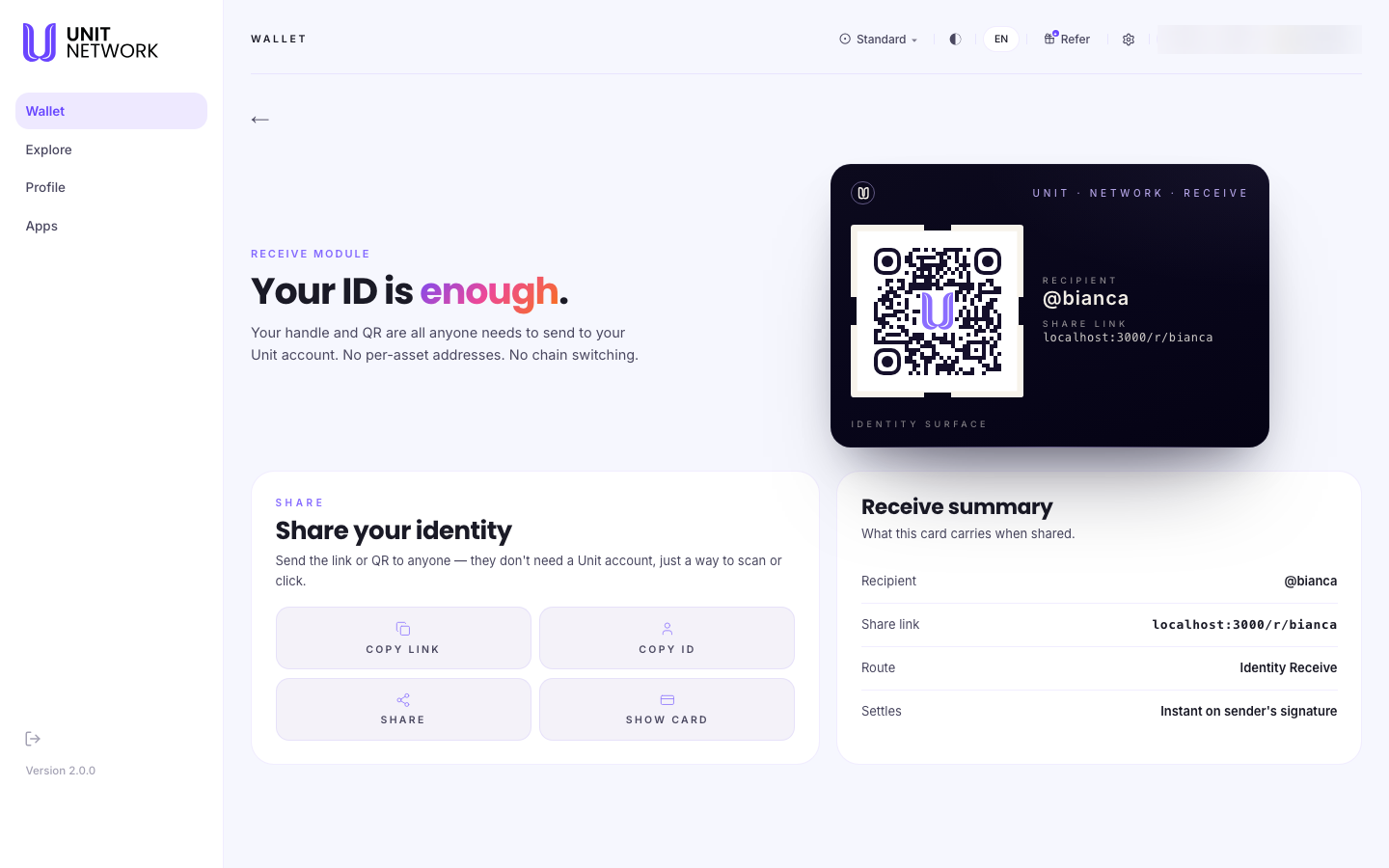
What You Can See
- Identity card
- Your QR code with your handle beneath it, and the share link in full. This is the card someone scans or opens.
- QR code
- Encodes the same link as the buttons below. Someone can scan it straight from your screen.
- Share link
- Your personal link, of the form
unit.network/r/<your handle>. It opens Send with you as the recipient. - Copy Link
- Copies the full share link, ready to paste anywhere.
- Copy ID
- Copies your handle on its own, for when someone only needs the identity and not a link.
- Share
- Opens your device's share options so you can send the link through a messaging app or by email.
- Show Card
- Presents the identity card as an image you can share — useful when a picture travels better than a link.
- Receive summary
- What the card carries when it is shared: the recipient, the link, the route and how the transfer settles. It is there so you know exactly what you are handing over.
Before You Begin
- A handle on your profile. Your handle is your identity here — it is what the QR code and link are built from.
- A way to reach the sender — a messaging app, email, or simply their being next to you to scan the code.
How to Use This Screen
Share your identity as a link
- Select Receive from the Wallet.
- Check the handle on the identity card is yours.
- Select Copy Link. The full share link is copied.
- Paste the link into a message and send it.
- The recipient opens the link and lands on Send with you already filled in. They choose the asset and amount.
Share in person with the QR code
- Select Receive from the Wallet.
- Turn your screen towards the sender.
- Ask them to scan the QR code with their camera or their UNIT app.
- They land on Send with you as the recipient and complete the transfer from there.
Share through an app
- Select Share.
- Choose the app you want to send through from your device's share options.
- Send the message. To share a picture of your card rather than a link, select Show Card first.
What Happens Next
Nothing happens on this screen — sharing is the whole action. The transfer itself takes place on the sender's side, in Send.
When a transfer arrives, the asset appears in your balances on the Wallet Overview, and the transfer is recorded in History.
Tips
- Your link is not a secret — it only lets someone send to you. It is safe to post or print.
- Use Copy ID when someone just wants to look you up, and Copy Link when you want them to be able to pay you in one step.
- The same link works for every asset. There is no need to share a different one per token.
Related Screens
- Send — where your share link takes the sender
- Wallet Overview — where a received asset appears
- Deposit — for value arriving from another chain rather than from a person
- Profile — where your handle is set
Frequently Asked Questions
- Do I need a different address for each asset?
- No. Receiving on UNIT is identity-based: one handle, one QR code and one link, for every asset.
- Does the sender need a UNIT account?
- They need one to complete the transfer, but they do not need one to open your link or scan your code.
- Is it safe to share my link publicly?
- Yes. It identifies you as a destination; it gives no access to your wallet.
- Can I use this to receive from another blockchain?
- No — this is for transfers inside UNIT. To bring in an asset you hold elsewhere, use Deposit, which gives you a chain-specific address.
Troubleshooting
- The QR code will not scan
- Raise your screen brightness and hold the camera steady. If it still fails, use Copy Link and send the link instead.
- The sender says the link does not work
- Check the handle shown on the card matches the link you sent, and that the link was pasted in full — messaging apps sometimes truncate a long paste.
- An expected transfer has not arrived
- Check History before assuming it failed, and confirm the sender used your handle rather than a similar one.