Wallet Overview
Overview
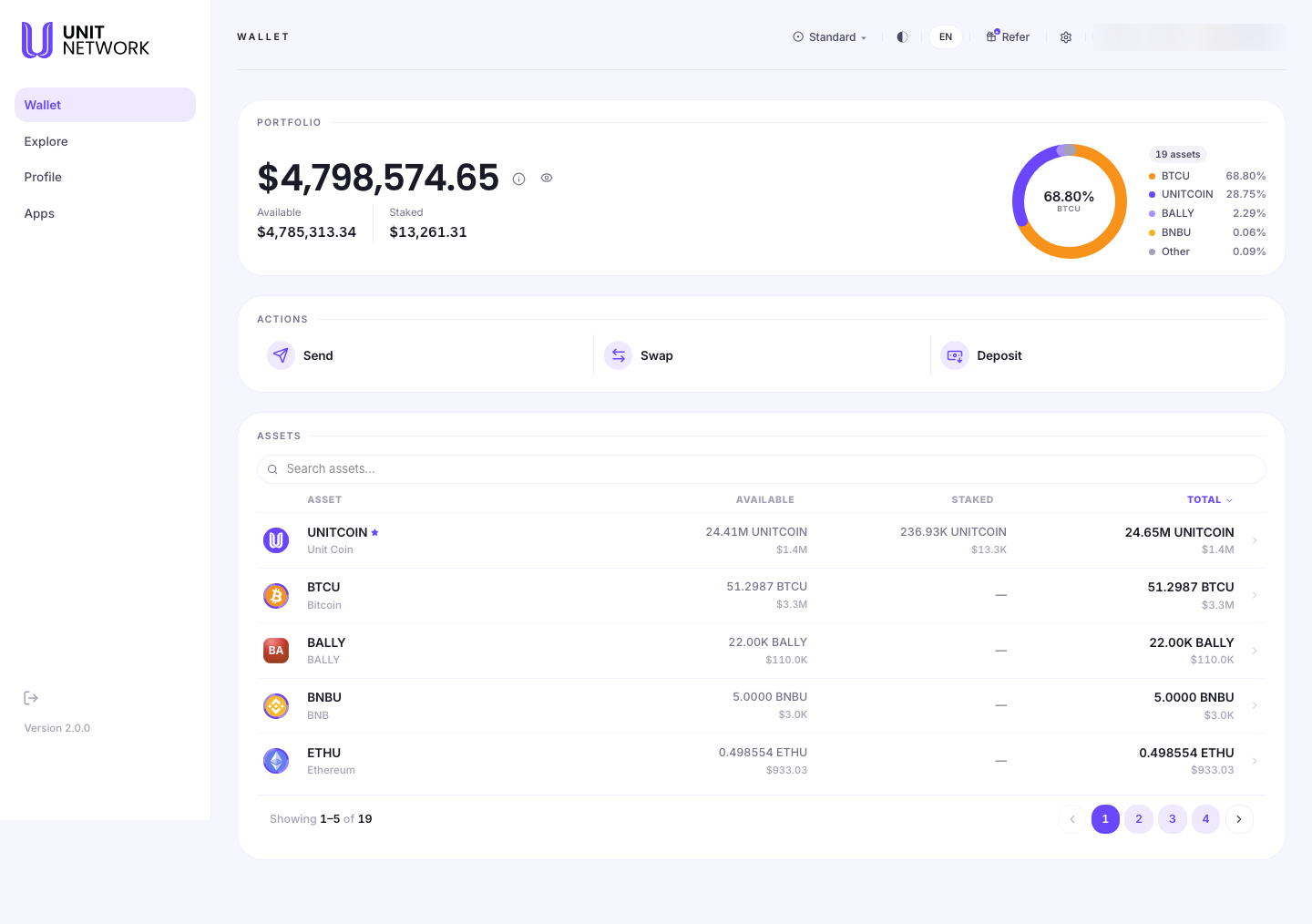
The Wallet Overview is your asset command centre. It answers three questions in one place: what you hold, what it is worth, and what you can do with it. It is the screen UNIT opens on.
Everything else in this chapter starts here. The overview shows your balances and launches the actions that move them — sending to someone, receiving, depositing from another chain, withdrawing, buying, gifting and staking.
What You Can See
Portfolio
- Total value
- Everything you hold, converted to a single figure.
- Available
- The part of your total you can spend, send or withdraw right now.
- Staked
- The part committed to earning. It still belongs to you and still counts towards your total, but it is not available to spend until you unstake it.
- Allocation chart
- How your value is split. The centre names your largest holding's share, and the legend beside it lists the largest few by percentage with everything else grouped as Other.
- Visibility control
- The eye icon hides the figures — useful when someone can see your screen.
Actions
The action row launches the things you can do with your assets. Send, Swap and Deposit are shown in the capture above; the full set of wallet actions is reached from the wallet menu.
Assets
- Search
- Filters the list by symbol or name as you type.
- Asset
- The symbol and full name of each holding, with its mark. Your primary asset is marked with a star.
- Available, Staked and Total
- Each balance appears twice: in the asset's own units, and as an approximate value beneath. A dash means nothing is staked for that asset — not zero value.
- Pager
- The list is paged. The count beneath tells you how many assets you hold in total.
Before You Begin
- You need to be signed in — the Wallet is private to your account.
- Values shown against your balances depend on a known price for that asset. Where no price is available, a dash is shown rather than an estimate.
How to Use This Screen
Find an asset
- Select the Search assets… field in the Assets panel.
- Type the symbol or the name of the asset — for example
BTCUorBitcoin. - Read the filtered list. If the asset is not shown, clear the search and use the pager to move through the full list.
Open an asset
- Locate the asset in the list.
- Check its Available and Staked balances in the row.
- Select the row. The token's own screens open, where you can see its market information and reach its earning actions.
Start a wallet action
- Decide what you want to do — see the table below.
- Select the matching action from the Actions row, or open it from the wallet menu.
- The action opens on its own screen with its stages shown across the top, so you always know how far through you are.
| If you want to… | Use |
|---|---|
| Pay or transfer to someone on UNIT | Send |
| Let someone send to you | Receive |
| Bring in an asset you hold on another chain | Deposit |
| Move an asset out to an external address | Withdraw |
| Buy an asset with a card | Buy |
| Send an asset as a claimable gift | Gift |
| Stake, unstake or claim rewards | Earn |
What Happens Next
Selecting an action opens that action's own screen. Selecting an asset row opens that token's screens. Nothing on the overview changes your balances by itself — it is where you look and where you start.
After you complete an action, your balances on this screen update to reflect it, and the action itself is recorded in History.
Tips
- Check Available rather than the total before starting a transfer. Staked value counts towards your total but cannot be sent.
- Use search rather than the pager when you know which asset you want — the list can run to several pages.
- Use the visibility control before sharing your screen or taking a screenshot.
Related Screens
- Send — moving an asset to someone on UNIT
- Deposit — bringing an asset in from another chain
- History — the record of everything you have done
- Token Pages — where an asset row leads
Frequently Asked Questions
- Why is my total higher than my available balance?
- Because part of it is staked. Staked value is still yours and still counted, but it is committed to earning and has to be unstaked before you can spend it.
- Why does an asset show a dash instead of a value?
- Because no price is currently known for it. UNIT shows a dash rather than estimating a value.
- Can I see the details of a single asset here?
- Not on this screen. Selecting an asset row takes you to that token's own screens, which is where its detail lives.
- Where do I see past transactions?
- In History. The Wallet shows balances and launches actions; it does not keep the ledger.
Troubleshooting
- An asset I expect to hold is not in the list
- Clear the search field first — it filters the list. Then check the pager: the list shows a few assets at a time and yours may be on a later page.
- My balance looks out of date after an action
- Some actions settle over time rather than instantly — deposits and withdrawals in particular. Check the action's own screen for its current stage before assuming the balance is wrong.
- The figures are hidden
- Select the eye icon beside the total to show them again.