Deposit
Overview
Deposit brings an asset you hold on another blockchain into UNIT. You choose the asset and the amount, UNIT gives you an address to send to, and once your transfer arrives you are credited with the UNIT version of that asset.
The wrapped asset carries a U on the end of its symbol. Deposit BTC and you receive BTCU; deposit ETH and you receive ETHU. Seven assets can be deposited: BTC, ETH, BNB, SOL, TON, USDC and USDT.
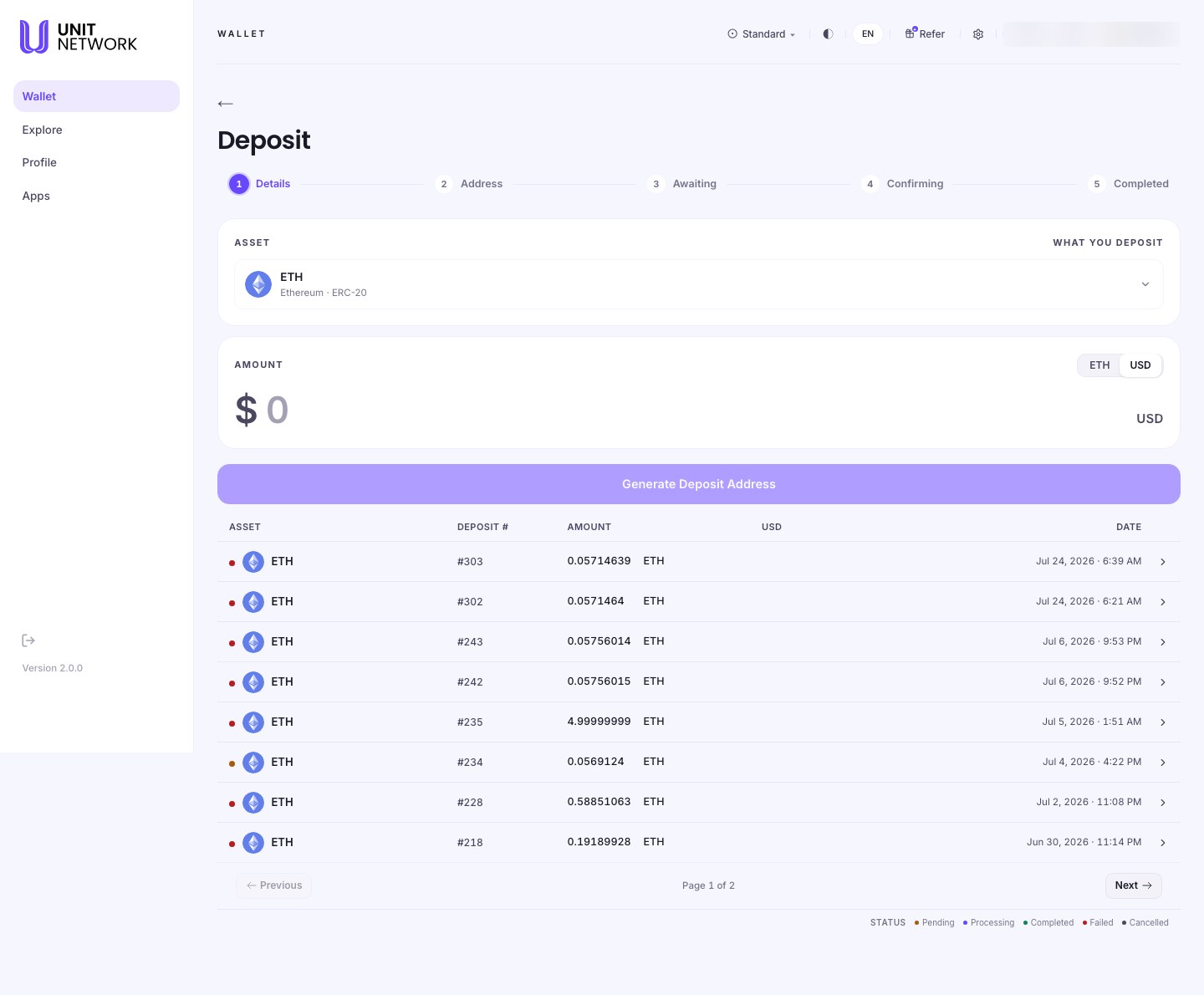
What You Can See
- Progress bar
- The five stages of a deposit: Details, Address, Awaiting, Confirming and Completed. Three of them are about waiting for the other chain, which is why a deposit is not instant.
- Asset
- Labelled what you deposit — the asset you are sending and the network it is coming from, shown together. The network matters as much as the asset.
- Amount
- How much you intend to send, in the asset's own units or in USD.
- Generate Deposit Address
- Creates the address you send your funds to and moves you to the next stage.
- Deposit history
- Every deposit you have made, with its asset, deposit number, amount, value and date.
- Status dot and legend
- The coloured dot on each row shows where that deposit has got to. The legend beneath the table names every status: Pending, Processing, Completed, Failed and Cancelled.
Before You Begin
- The asset you want to deposit, and confirmation that it is one of the seven supported.
- The network it is on. This is the single most important thing to get right — USDT and USDC in particular exist on more than one network.
- The wallet or exchange you are sending from, with enough balance to cover the amount plus that chain's own fee.
- The amount. In USD mode a minimum of $100 applies.
How to Use This Screen
- Select Deposit from the Wallet.
- Select the Asset panel and choose the asset you are depositing. Check the network shown beside it matches the network you will be sending from.
- Enter the Amount you intend to send. Use the switch to enter it in the asset's own units or in USD.
- Select Generate Deposit Address. The screen moves to Address and opens the deposit record.
- On the deposit record, copy the exact amount and the deposit address, or scan the QR code with the wallet you are sending from.
- Send the funds from your external wallet or exchange. Send the exact amount shown, on the network shown.
- Optionally paste the transaction hash into the Transaction Hash field on the deposit record. This is not required — it only helps locate your deposit sooner.
- Select I have sent the deposit. The deposit moves to Awaiting, then to Confirming as the transfer is detected.
- Wait for Completed. The wrapped asset is then credited to your wallet.
Matching the network
Send only the asset named, on only the network named. Sending a different asset to a deposit address, or the right asset over the wrong network, can lose the funds permanently — that warning appears on the deposit record itself, and it is the one thing on this screen worth reading twice.
If the wallet you are sending from asks you to choose a network, choose the one shown beside the asset on this screen. If they do not match, go back and change the asset here rather than adjusting the network there.
What Happens Next
Generating an address takes you to the deposit record, which is where the remaining four stages play out. You do not need to keep the screen open — the deposit continues, and you can return to it from the deposit history on this screen at any time.
When the deposit completes, the wrapped asset appears in your balances on the Wallet Overview.
Tips
- Send the exact amount shown. The deposit record states it precisely for a reason.
- Copy the address rather than typing it, and check the first and last few characters after pasting.
- For a first deposit of a new asset, consider a small test amount before moving a large one.
- Keep the deposit number — it identifies your deposit in the history list.
Related Screens
- Deposit Record — the address, the QR code and the deposit's progress
- Withdraw — the same journey in the opposite direction
- Wallet Overview — where the credited asset appears
- Digital Assets — your external addresses
Frequently Asked Questions
- Which assets can I deposit?
- BTC, ETH, BNB, SOL, TON, USDC and USDT. Each is credited as its UNIT-wrapped equivalent — BTCU, ETHU, BNBU, SOLU, TONU, USDCU and USDTU.
- Why do I receive BTCU instead of BTC?
- Because the asset inside UNIT is the wrapped form. It represents your deposited BTC and can be withdrawn back to Bitcoin later.
- Can I deposit UNITCOIN?
- No. UNITCOIN is native to UNIT, so there is no external chain to deposit it from.
- How long does a deposit take?
- It depends on the network you are sending from, not on UNIT. The stage shown on the deposit record tells you where it has got to.
- Do I have to enter the transaction hash?
- No. It is optional and only helps locate your deposit faster. Your deposit is detected either way.
- Is there a minimum?
- In USD mode, $100.
Troubleshooting
- I sent the wrong amount
- Open the deposit from the history list and check its status. Add the transaction hash to the deposit record so the transfer can be matched to it.
- I chose the wrong network in my external wallet
- Stop and check before sending anything further. A transfer on the wrong network may not be recoverable. Start a fresh deposit with the asset that matches the network you actually hold the funds on.
- My deposit is still showing as awaiting
- The external chain has not confirmed it yet. Add the transaction hash to the deposit record if you have not already — it helps the deposit be located sooner.
- I cannot find a deposit I made
- Use the pager under the deposit history — the list is paged and older deposits are on later pages.