History
Overview
History is the complete record of what you have done on UNIT — "view your transactions and events across all modules." Everything else in this guide records its own corner; this screen is where all of it comes together in one list.
It is the HISTORY tab on Profile.
UNIT offers several routes to your record — from the account, from the network, from the creator workspace — and they all open this one screen. If you followed an Activity link and arrived at a page headed History, nothing has gone wrong.
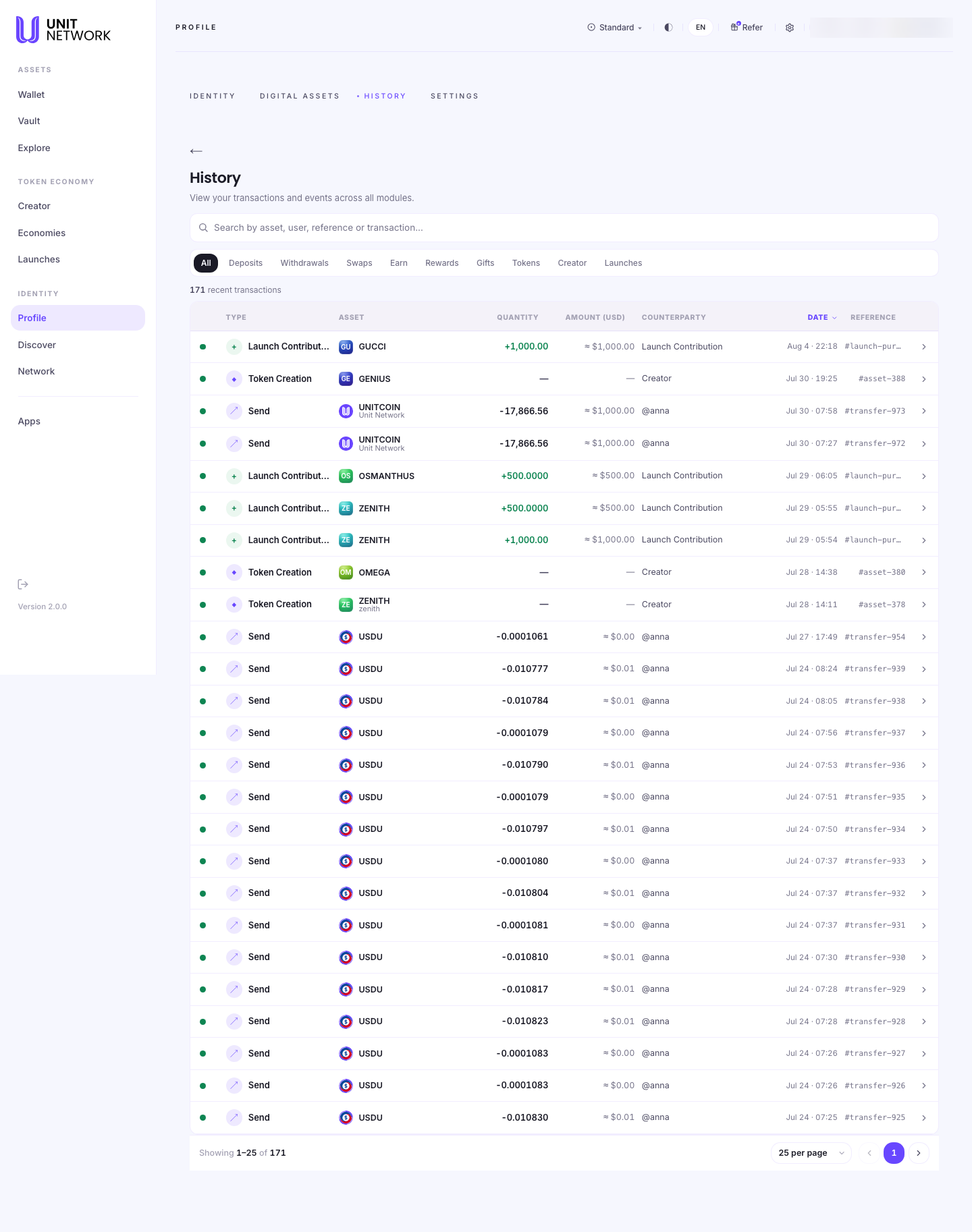
What You Can See
The filters
Ten of them, and they are the fastest way through a long record: All, Deposits, Withdrawals, Swaps, Earn, Rewards, Gifts, Tokens, Creator and Launches.
Each corresponds to a chapter of this guide, which makes History a useful index of your own use of the platform — filter by Launches and you have every contribution you have ever made.
The count
A total sits above the table — 171 recent transactions in the example — so you know the scale before you start reading.
The columns
- Type
- What happened, with an icon: Send, Launch Contribution, Token Creation, and so on.
- Asset
- Which token, with its symbol and name.
- Quantity
- How much, signed — +1,000.00 for something received, −17,866.56 for something sent. The sign is the quickest read on the screen.
- Amount (USD)
- The same value in dollars, marked approximate.
- Counterparty
- Who or what was on the other side — a handle such as @anna for a transfer, or a description such as Launch Contribution or Creator where there is no person.
- Date
- Day and time.
- Reference
- The identifier for that record — a transfer number, an asset number, or a launch-purchase hash. This is what to quote if you ever need to point at a specific event.
Events, not just transfers
Note the rows with no quantity and no amount. Token Creation is one — nothing moved, but something happened. History records events as well as value, which is why it can show you the day you created a token alongside the day you sent one.
Before You Begin
- Be signed in. History is your own record.
- Nothing else. It is a reading screen — nothing here costs anything or changes anything.
- A question in mind. With hundreds of rows, a filter beats scrolling.
How to Use This Screen
Find a particular transaction
- Open Profile and select HISTORY.
- Choose the filter that matches what you are looking for — Swaps, Gifts, Deposits.
- Scan the Date column to the right period.
- Check the Quantity sign to tell what came in from what went out.
- Note the Reference if you need to refer to it later.
Review what you have contributed to launches
- Select the Launches filter.
- Every contribution appears with its token, amount and date.
- Compare with Launches for how those rounds settled.
Account for a month
- Leave the filter on All.
- Read down the Date column to the period you want.
- Use Amount (USD) for a common unit across different tokens.
- Remember rows with no amount are events rather than movements.
What Happens Next
Nothing — History is a record. New rows appear as you use the platform.
For the current position rather than the trail, go to your wallet. History tells you what happened; the wallet tells you where you stand.
Tips
- Use the filters. They map onto the chapters of this guide, so they are a fast index of your own activity.
- Read the sign in the Quantity column before anything else — it separates in from out at a glance.
- Keep the Reference for anything you may need to ask about later.
- Rows with no quantity are events, not movements — creating a token, for instance.
- Counterparty tells you whether a person was involved or whether it was a platform action.
Related Screens
- Your Identity — the neighbouring Profile tab
- Wallet Overview — the position, rather than the record
- Treasury History — a token's ledger, rather than yours
- Activity — the other name for this screen
Frequently Asked Questions
- Is History the same as Activity?
- Yes. Several routes are labelled Activity and all of them open this screen.
- Why do some rows have no amount?
- They are events rather than transfers — creating a token, for example. Nothing moved, but it is still part of your record.
- What is the Reference for?
- It identifies that specific record. Quote it if you need to point at one event.
- Does History show other people's transactions?
- No. It is your own record. A token's public ledger is its treasury history.
- How far back does it go?
- Across your account. The count above the table tells you how many records there are.
- Why is the USD figure approximate?
- It converts each amount at a rate, so it is an indication rather than a settled figure.
Troubleshooting
- A transaction I expected is missing
- Check the filter is on All — the filters combine with nothing else, so an active one hides everything outside it.
- I followed an Activity link and got History
- Expected. They are the same screen.
- The totals do not match my wallet
- They measure different things. History is the trail of what happened; the wallet is the current position.
- I cannot tell whether a row was in or out
- Read the sign on Quantity — + received, − sent.