Your Identity
Overview
Your identity is your presence on UNIT. The handle here is what every transfer is addressed to, what your Receive link shares, and what appears beside anything you create.
The screen says it directly: "Your Unit ID is your network presence." This is where you set what that presence looks like.
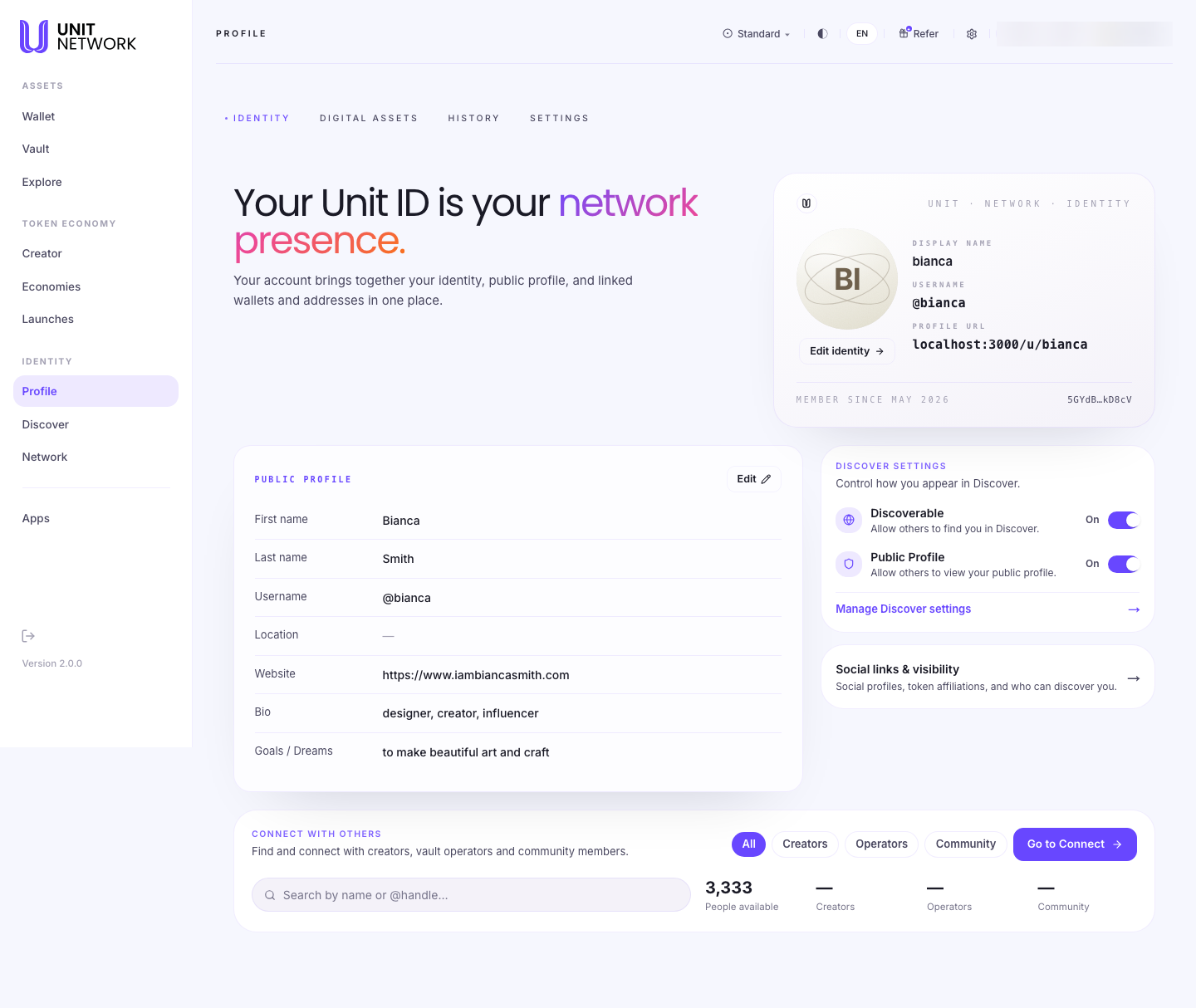
What You Can See
The four Profile tabs
Profile gathers four things, and only the first is covered in this chapter:
- Identity
- This tab — your Unit ID, public profile and Discover settings.
- Digital Assets
- Your linked wallets and verified external addresses.
- History
- The record of everything that has happened on your account.
- Settings
- How the application behaves for you.
Your identity card
- Display Name and Username
- What people see, and the @handle they address you by. The handle is the important one — it is what Send resolves and what Receive shares.
- Profile URL
- Your public page, of the form
unit.network/u/<your handle>. - Member Since
- When you joined.
- Account address
- Your account's address on the network, shown in short form.
Public Profile
First name, last name, username, location, website, a bio and goals or dreams. This is the text people read on your public page.
Discover Settings
- Discoverable
- Whether others can find you in Discover.
- Public Profile
- Whether others can view your public page.
Both are switches, so you can be findable without being public, or neither.
Manage Discover settings beneath them opens the fuller editor described next.
Social links & visibility
A card in the right-hand column, summarising itself as "social profiles, token affiliations, and who can discover you." It opens a fuller editor than the two switches above — the place to add the social accounts people can find you through, and to name the token economies you belong to.
Those affiliations are worth a moment. They use the same categories tokens are grouped by in Explore Markets — an industry, a city, your own token, a project — so naming one places you inside an economy rather than just listing a symbol.
Connect with others
At the foot of the tab sits a window onto the rest of the network: "Find and connect with creators, vault operators and community members."
- Search
- By name or @handle.
- All · Creators · Operators · Community
- The same role filters used in Discover.
- People available
- How many members you could reach, broken down by role. It is the one place in Profile that tells you the size of the network you have joined.
- Go to Connect
- Opens Discover proper, where requests are sent.
Nothing here sends a request — that costs 1 UNITCOIN and happens in Discover. This is the doorway, placed next to your own identity so the two sides of being findable sit together: what you publish, and who is out there to find it.
Before You Begin
- A handle you are happy with. It is what everything addresses you by.
- A short bio, if you want people who find you to know what you do.
- A decision about visibility — whether you want to be findable and public.
How to Use This Screen
Set up your identity
- Select Profile from the menu. It opens on Identity.
- Check your Username — this is the handle people will send to.
- Select Edit identity to change your display name or avatar.
- Note your Profile URL. It is worth knowing, because it is what you share.
Fill in your public profile
- Find the Public Profile section and select Edit.
- Enter your first and last name as you want them shown.
- Add a website and location if you want them public.
- Write a bio — a line on what you do.
- Add your goals or dreams. This appears as your vision on your public page.
- Save. The changes appear on your public page.
See how big the network is
- Scroll to Connect with others at the foot of the Identity tab.
- Read People available and its breakdown by role.
- Filter by Creators, Operators or Community to see who is out there.
- Select Go to Connect when you want to actually reach someone.
Control how you appear
- Find Discover Settings.
- Set Discoverable according to whether you want to be found in Discover.
- Set Public Profile according to whether people can view your page.
- Both default to on, so check them if you would rather be private.
What Happens Next
What you set here shows up in three places: on your public page, in Discover if you are discoverable, and beside your handle wherever it appears — on a token you created, or a launch you backed.
Tips
- Your handle is your address. Anyone sending to you uses it, so pick something you are happy to give out.
- Write the bio even if you do not think anyone will read it — a profile with none looks abandoned in Discover.
- The two Discover switches are independent. You can be findable but not viewable.
- Verified external addresses are not here — they are in Digital Assets, the next tab.
Related Screens
- Your Public Profile — how all this looks to others
- Receive — where your handle is shared as a link and QR code
- Discover — where discoverable profiles appear
- Digital Assets — linked wallets and addresses
Frequently Asked Questions
- What is my Unit ID?
- Your handle — the @name everything on UNIT addresses you by.
- Is my account address the same as my handle?
- No. The handle is what people use; the address is the underlying account identifier. You rarely need the address.
- Who can see my bio?
- Anyone who views your public page, if Public Profile is on.
- Can I be found without being public?
- Yes. The two switches are separate.
- Where are my wallets and external addresses?
- On the Digital Assets tab.
Troubleshooting
- Someone cannot find me in Discover
- Check Discoverable is on in Discover Settings.
- My profile URL shows a different name
- The URL follows your username, not your display name. Change the username to change the URL.
- My changes are not on my public page
- Confirm the edit was saved, then open your public page to check.