Explore Markets
Overview
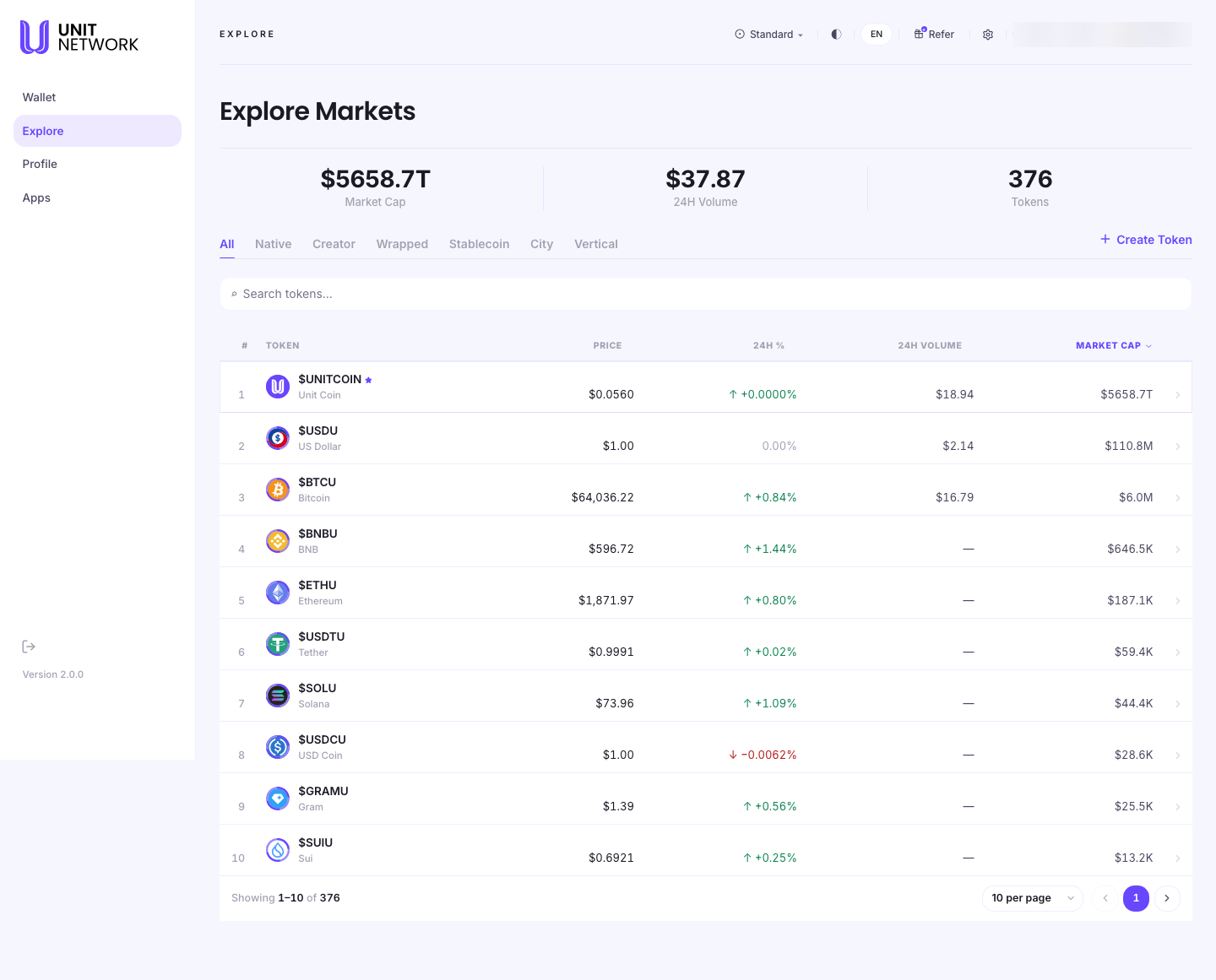
Explore Markets is the front door to everything issued on UNIT. It is a ranked table of every token, with its price, how it has moved in the last 24 hours, its volume and its market cap — so you can see what exists and how it is performing before you go any further.
It is also the way in to any individual token: select a row and that token's own pages open, where you can swap it, provide liquidity, or read its details.
What You Can See
- Market Cap, 24H Volume and Tokens
- Three summary figures across the top: the total value of everything issued on UNIT, how much has traded in the last day, and how many tokens exist.
- Category filters
- All, Native, Creator, Wrapped, Stablecoin, City and Vertical. These are the real token families on UNIT — Native is UNITCOIN itself, Wrapped covers assets brought in from other chains, Creator covers tokens people have issued, and Stablecoin covers those tracking a currency.
- Search
- Filters the table by symbol or name as you type.
- Create Token
- Starts issuing a token of your own — see Creator.
- The table
- # is the rank. Token shows the symbol and full name. Price, 24H %, 24H Volume and Market Cap are the market figures — the column headings are selectable, so the table can be re-ordered by any of them. Market cap is the default order.
- Dashes
- A dash in a column means there is nothing to report — a token with no trades in the last day shows a dash for volume rather than a zero.
- Paging
- The count beneath the table tells you how many tokens there are in total, and you can show 10, 25, 50 or 100 at a time.
Before You Begin
- Nothing. Explore Markets is a browsing screen and is safe to read.
How to Use This Screen
Find a token
- Select Explore from the menu. The page opens on Explore Markets.
- Type the symbol or name into the search field — for example
BTCUorBitcoin. - If you are browsing rather than searching, select a category to narrow the list — Stablecoin for assets tracking a currency, Creator for tokens people have issued.
- Use the page-size control at the bottom to show more rows at once.
Compare tokens
- Select a column heading to sort by it — Market Cap, 24H % or 24H Volume.
- Read 24H Volume alongside Market Cap: a large market cap with little volume means the token is not trading much.
- Watch for dashes. A dash in the volume column means there was no trading to report.
Open a token
- Find the token in the table.
- Select its row.
- The token's own page opens, where you can swap it, provide liquidity, claim rewards or read its details — see Token Pages.
What Happens Next
Selecting a row leaves Explore for that token's pages. From there the actions are the token's own: Swap to trade it, Liquidity to provide liquidity and earn trading fees, Reward to claim and stake rewards, and a details view for everything else about it.
Nothing on Explore Markets itself changes your balances.
Tips
- Sort before you scroll. With hundreds of tokens listed, ordering by the column you care about is faster than paging.
- The category filters are the quickest way to separate wrapped assets from tokens people have issued.
- A dash is not zero — it means there is nothing to report.
- Explore Markets is the whole catalogue; your own holdings are in the Wallet.
Related Screens
- The Token Page — where a row leads
- The Token Page — what a token offers, by kind
- Acquire — creating a stablecoin against collateral you hold
- Creator — issuing a token of your own
- Wallet Overview — the tokens you actually hold
Frequently Asked Questions
- What is the difference between Explore and my Wallet?
- Explore is every token on UNIT. Your Wallet is the ones you hold.
- What do the categories mean?
- Native is UNITCOIN. Wrapped is an asset brought in from another chain. Creator is a token someone has issued. Stablecoin tracks a currency. City and Vertical are further families of issued tokens.
- Why do some tokens show a dash for volume?
- Nothing traded in the period, so there is nothing to report.
- How do I buy one of these?
- Open the token and use Swap to trade an asset you hold for it, or use Buy in the Wallet to pay by card.
- Can I sort by something other than market cap?
- Yes — select any column heading.
Troubleshooting
- A token I expect is not listed
- Clear the search field and set the category filter to All — both narrow the list. Then check the page count, since the catalogue runs to hundreds of tokens.
- The figures look out of date
- Market data updates as trades happen. Reload the page for the latest.
- A price shows a dash
- No current price is available for that token. UNIT shows a dash rather than a figure it cannot stand behind.