Sign-In
Overview
Digital Assets is the register of everything attached to your account that is not a balance — "the wallets, addresses, and sign-in methods linked to your account." It has three sections, each with its own address: Verified Addresses, Sign-In and Wallets.
Reach it from Profile — the DIGITAL ASSETS tab — or from Apps.
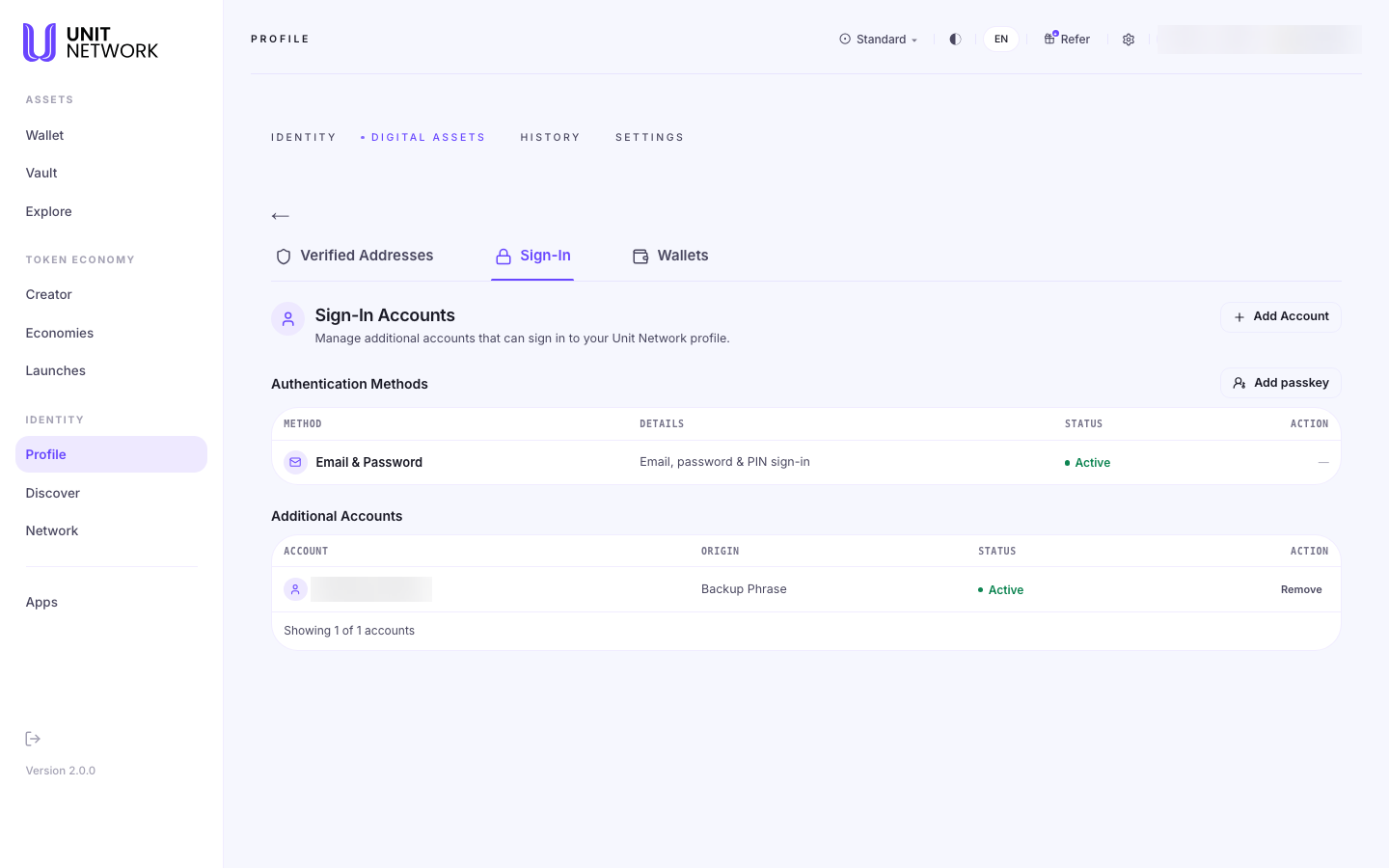
Sign-In is who can get into your account, in two parts: the methods you use, and any additional accounts that can reach the same profile.
Who can get into your account, in two parts.
Authentication methods
How you sign in. Email & Password appears as "email, password & PIN sign-in" — the three-part credential described in Sign In. Add passkey adds a device credential alongside it.
Additional accounts
Other accounts that can sign in to the same profile, each showing its origin — a Backup Phrase, for instance — its status, and a Remove control.
This is the list to check if you ever wonder what can reach your profile. Anything here can.
Before You Begin
- Be signed in. This is your own register.
- For a passkey: a device with Touch ID, Face ID or a security key.
How to Use This Screen
Review what can reach your account
- Open Digital Assets and select Sign-In.
- Read Authentication methods — how you sign in.
- Read Additional accounts — anything else that can. Check each origin.
- Use Remove on anything you do not recognise.
Add a passkey
- Select Add passkey.
- Confirm on your device.
- Check it appears under Authentication methods as Active.
What Happens Next
A new method becomes available on the sign-in screen. A removed account can no longer reach your profile, and the removal is recorded under archived records.
Tips
- Review this list occasionally. It is the shortest answer to "what can reach my account?"
- Check the origin of every additional account — a backup phrase, for instance.
- Adding a passkey does not remove your existing method; both stay active.
Related Screens
- Verified Addresses · Wallets — the other two sections
- Sign In — the methods listed here
- Restore Your Account — recovery by phrase
Frequently Asked Questions
- What are additional accounts?
- Other accounts that can sign in to the same profile, each showing where it came from.
- What does "Backup Phrase" origin mean?
- That account was established from a recovery phrase.
- Can I have more than one authentication method?
- Yes — Add passkey sits alongside email, password and PIN.
Troubleshooting
- I do not recognise an additional account
- Check its origin, and use Remove if it should not be there.
- Add passkey does nothing
- Your device or browser needs to support passkeys and prompt you to confirm.