Sign In
Overview
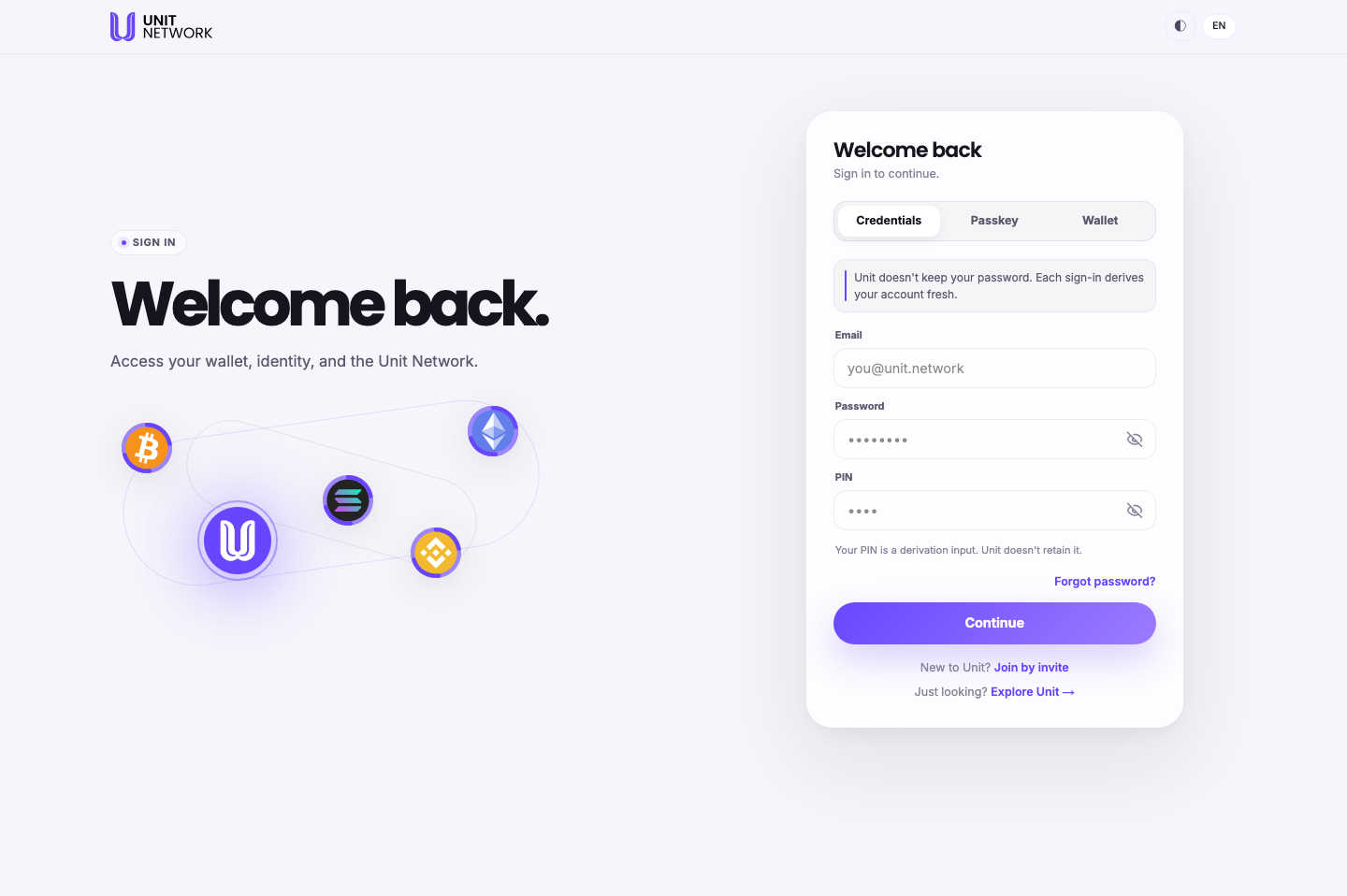
The sign-in screen is short and says something important: "Unit doesn't keep your password. Each sign-in derives your account fresh."
You sign in with whichever method you chose when you registered — Credentials, Passkey or Wallet.
UNIT does not store your password. The sign-in screen says so outright — "Unit doesn't keep your password. Each sign-in derives your account fresh." — and the registration screen repeats it: "Unit doesn't see or store your password. It's used here to set up your account, then discarded."
Your details are the ingredients your account is derived from, not a lock that is checked against a stored copy. That is why the PIN field carries the note "Your PIN is a derivation input. Unit doesn't retain it.", and why there is nobody to ask for a reset.
What You Can See
Credentials
- The address you registered with.
- Password
- Not checked against a stored copy — used to derive your account.
- PIN
- Carries its own note: "Your PIN is a derivation input. Unit doesn't retain it." It is part of what makes your account yours, not a second password kept on file.
Passkey
No fields at all. The screen explains why: "No password. No copy-paste. The authenticator on this device is the credential." and "Your device confirms it's you. Unit verifies the result and signs you in."
On availability it is specific — "Touch ID, Face ID, or your security key. If you have iCloud Keychain or another password manager, your passkey may also be available on your other devices." If you are on a device without your passkey, See options offers the alternatives.
Wallet
Sign in with the wallet you registered — MetaMask or Talisman — rather than typing anything.
The three lines at the foot
- Forgot password?
- Goes to Restore Your Account. Read that page before you need it: it is a recovery-phrase screen, not a password reset.
- New to Unit? Join by invite
- Goes to the invitation screen.
- Just looking? Explore Unit
- You can browse without an account.
Before You Begin
- Your method. Whichever you registered with — email, password and PIN; your passkey device; or your wallet.
- For Passkey: the device holding it, or one it has synced to.
- For Wallet: MetaMask or Talisman installed and unlocked.
- Nothing at all to browse. "Just looking?" works without signing in.
How to Use This Screen
Sign in with credentials
- Leave Credentials selected.
- Enter your Email.
- Enter your Password.
- Enter your PIN.
- Select Continue.
Sign in with a passkey
- Select Passkey.
- Select Sign in. There is nothing to type.
- Confirm with Touch ID, Face ID or your security key.
- On a device without your passkey, select See options.
Sign in with a wallet
- Select Wallet.
- Choose the wallet you registered with.
- Approve the connection in the extension.
Look around without signing in
- Select Explore Unit at the foot of the screen.
- Browse Explore. Signing in is only needed to hold or move anything.
What Happens Next
You land in your wallet, and everything in this guide is available from there.
Because each sign-in derives your account fresh rather than checking a stored password, entering slightly different details does not produce an error message about a wrong password — it simply does not give you your account. Exactness matters more here than on most sign-in screens.
Tips
- All three of email, password and PIN matter equally. The PIN is not an optional extra layer; it is part of what your account is derived from.
- "Forgot password?" is not a reset. It leads to a twelve-word recovery screen. Read Restore Your Account now, while you do not need it.
- Passkeys can travel. If you use iCloud Keychain or a password manager, your passkey may already be on your other devices.
- Use Explore Unit if you only want to look. There is no reason to sign in first.
Related Screens
- Restore Your Account — where "Forgot password?" leads
- Invitation — where "Join by invite" leads
- Create Your Account — where the method was chosen
- Wallet Overview — where you land
Frequently Asked Questions
- Why is there a PIN as well as a password?
- Both are inputs your account is derived from. The screen calls the PIN "a derivation input" and says it is not retained.
- Can I reset my password?
- No — there is nothing stored to reset. Forgot password? leads to recovery by phrase instead.
- Can I sign in on a different device?
- With credentials, yes — nothing is tied to a device. With a passkey it depends on whether the passkey has synced; the screen explains this.
- Do I need an account to look around?
- No. "Just looking? Explore Unit" is on the screen for exactly that.
- Can I sign in with a method I did not register with?
- Use the method you chose at registration. The screen offers all three, but your account was set up with one of them.
Troubleshooting
- My details are not signing me in
- Check the email, password and PIN are each exactly what you registered — capitals and all. Nothing is stored, so nothing can be looked up or reset.
- I have forgotten my PIN
- There is no reset. Recovery goes through your recovery phrase.
- My passkey is not offered
- You may be on a device it has not synced to. Select See options.
- My wallet will not connect
- The extension needs to be installed and unlocked in this browser.
- I do not have an account yet
- Select Join by invite — you will need somebody's username to start.