Buy
Overview
Buy is the way into UNIT if you are not bringing assets from another chain. You choose the asset and how much you want to spend, and a payment provider handles the payment itself.
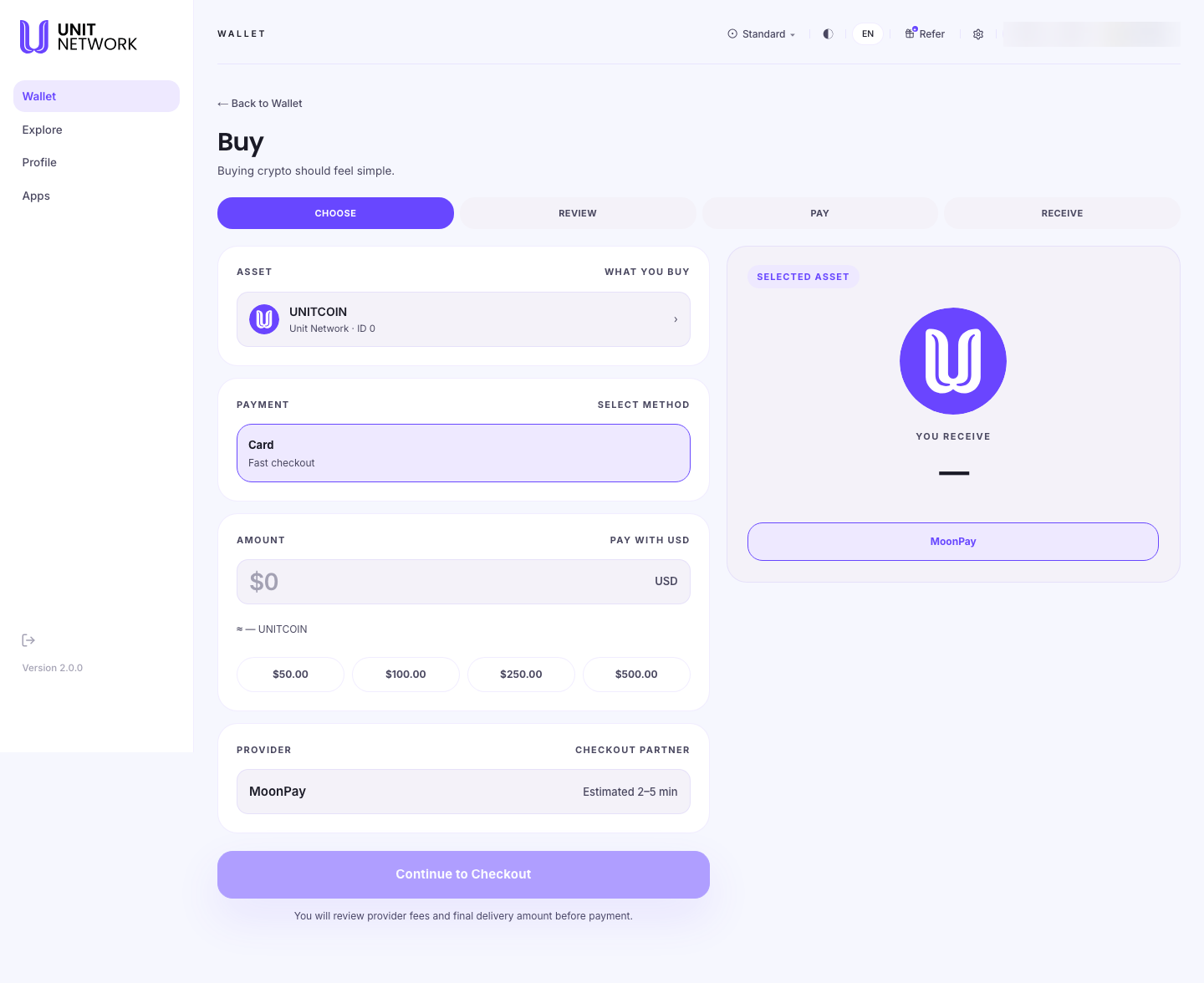
The four stages are shown across the top: Choose, Review, Pay and Receive. Choosing and reviewing happen in UNIT; paying happens with the provider; receiving brings you back to your wallet.
What You Can See
- Stage tabs
- Choose, Review, Pay and Receive, with the current stage filled.
- Asset
- Labelled what you buy — the asset you are buying and the network it belongs to.
- Payment
- How you are paying. Card is a card checkout; a crypto-deposit method is also available, where you send an existing crypto balance instead.
- Amount
- How much you want to spend, in USD, with an approximate conversion beneath showing what you would receive. Presets of $50, $100, $250 and $500 fill it for you.
- Provider
- The checkout partner who takes the payment, with an estimate of how long it takes.
- Selected asset panel
- A running summary of what you are buying and what you will receive.
- Continue to Checkout
- Moves you on to review and then payment. The note beneath states that you will see the provider's fees and the final delivery amount before you pay.
Before You Begin
- The asset you want to buy.
- A payment method — a card you can use online, or an existing crypto balance if you are using the crypto-deposit method.
- The amount in dollars. Amounts are entered in USD.
- A few minutes. The provider's checkout is a separate step and may ask you to verify your identity the first time.
How to Use This Screen
- Select Buy from the Wallet.
- Select the Asset panel and choose what you want to buy.
- In Payment, select the method you want to use — Card for a card checkout.
- Enter the Amount in USD, or select one of the presets.
- Check the approximate amount of the asset you would receive, shown beneath the amount field.
- Check the Provider panel to see who will take the payment and how long it is expected to take.
- Select Continue to Checkout. The screen moves to Review, where the provider's fees and the final delivery amount are shown.
- Confirm the order. This creates a buy order and moves you to the Pay stage.
- Complete the payment with the provider, then return to UNIT to follow the order to Receive.
What Happens Next
Confirming creates a buy order, which is where payment is completed and the order's progress is shown. Once the payment clears, the asset is delivered to your wallet and appears on the Wallet Overview.
The purchase is recorded in History.
Tips
- The amount you enter is not the amount you are charged. The provider's fee is added, and the review stage shows the final figure before you commit.
- Use a preset for a first purchase — it is quicker and easier to check.
- Allow extra time on a first purchase: providers usually require identity verification once.
- Keep the buy order open in UNIT while you pay, so you can follow the order through.
Related Screens
- Buy Order — paying, and following the order
- Deposit — bringing in assets you already own elsewhere
- Wallet Overview — where the purchased asset arrives
Frequently Asked Questions
- Who takes the payment?
- A checkout provider, not UNIT. The provider is named on the screen before you continue.
- What can I pay with?
- A card, or an existing crypto balance using the crypto-deposit method.
- Which currency do I buy in?
- Amounts are entered in USD.
- When do I find out the fees?
- At the review stage, before you pay. The provider's fees and the final delivery amount are both shown there.
- How long does it take?
- The provider panel shows an estimate for the method you have chosen.
Troubleshooting
- The amount I receive looks lower than I expected
- The provider's fee is deducted from what you pay. Check the review stage, which shows the final delivery amount before you commit.
- I closed the payment window
- Reopen the buy order and start the provider checkout again from there.
- The conversion beneath the amount shows a dash
- No current price is available for that asset, so no conversion is shown. The review stage gives you the figures before you commit.