Settings
Overview
Settings is where you change how the application looks and behaves for you — "Your Unit app, configured for you." The screen describes its own job as managing "the way Unit looks, feels, notifies, protects, and connects."
Six tabs run across the top: General, Notifications, Security, Privacy, Apps and About.
Settings is not where your identity lives. The screen repeats this on nearly every tab: "Identity, profile, verified addresses, digital assets, and mode remain inside Account." On Security it puts it more sharply still — "Account owns who you are. Settings owns how access is managed."
So if you are looking for your username, your public profile, your social links or your discoverability, they are in Profile, not here.
Many controls in Settings carry a small Future version marker. That label is the screen's own, and it means the control is shown but not yet doing anything. This guide follows the screen: where something is marked that way, it is described as what the tab will hold rather than walked through as a task.
Two controls are live today — Theme and Language, both on General — and both are documented in full below.
Getting there
Two routes, both landing on the same screen:
- The Settings tile on Apps.
- The SETTINGS tab on Profile. Unlike the other Profile tabs, this one leaves Profile and opens Settings as its own screen.
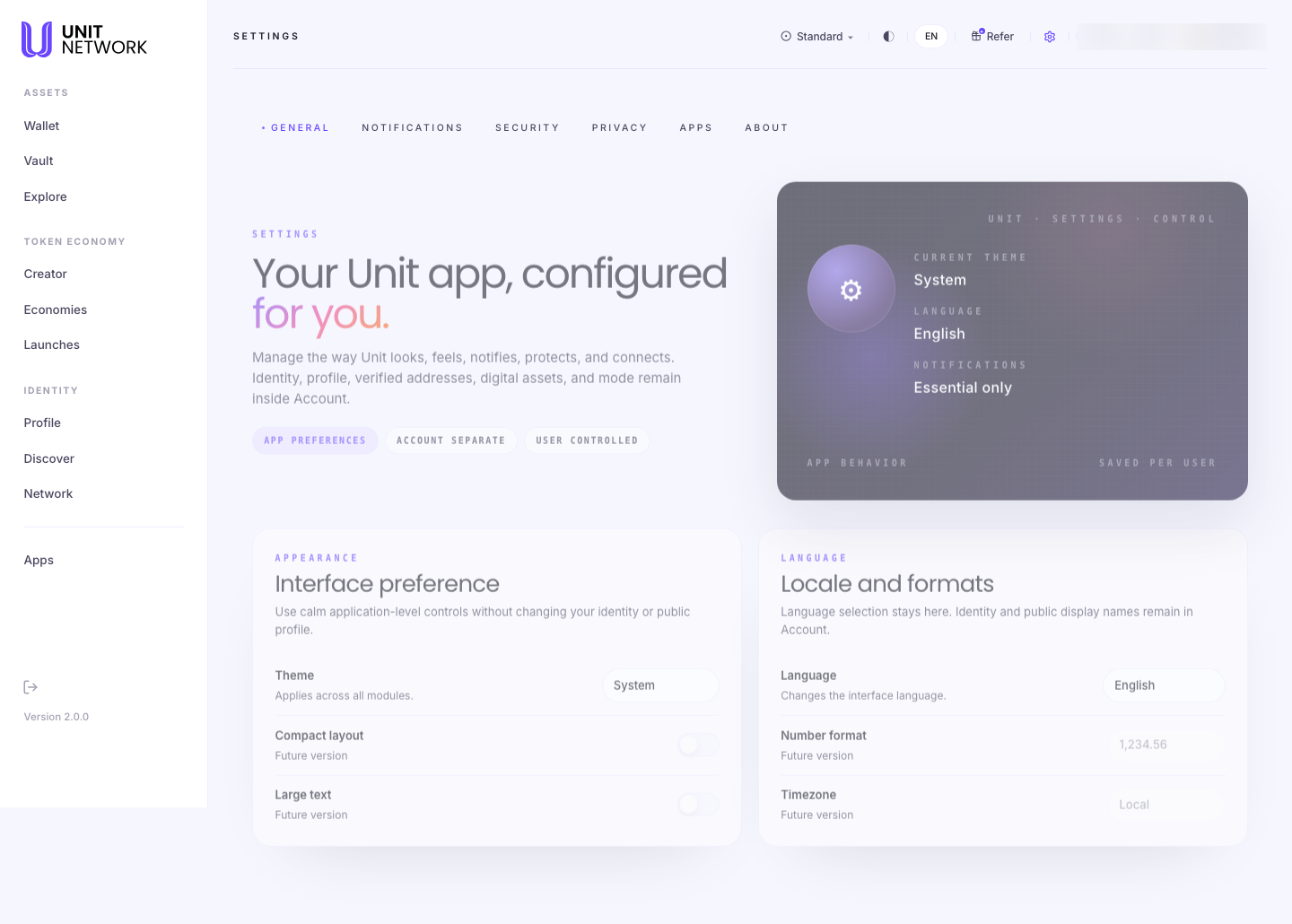
General
The only tab with working controls today, and the one most people want.
The summary row
Four figures across the top tell you the current state at a glance: Current theme, Language, Notifications, and App behavior — the last reading "saved per user", meaning your choices follow your account.
Appearance
- Theme — works now
- Three choices: System, Light and Dark. The note beneath reads "Applies across all modules" — it is one setting for the whole application, not per screen. System follows whatever your device is set to.
- Compact layout
- Marked Future version.
- Large text
- Marked Future version.
Locale and formats
- Language — works now
- Nineteen languages: Arabic, German, Greek, English, Spanish, French, Hindi, Indonesian, Italian, Japanese, Korean, Malay, Dutch, Portuguese, Russian, Thai, Turkish, Vietnamese and Chinese. Each is listed in its own language, so you can find yours without reading English.
- Number format
- Marked Future version. Three styles are shown —
1,234.56,1.234,56and1 234,56. - Timezone
- Marked Future version.
The section carries its own reminder: "Language selection stays here. Identity and public display names remain in Account." Changing your language changes the interface, not how your name appears to other people.
Privacy
Worth reading even though its controls are not live yet, because it sets out plainly what other people can and cannot see about you.
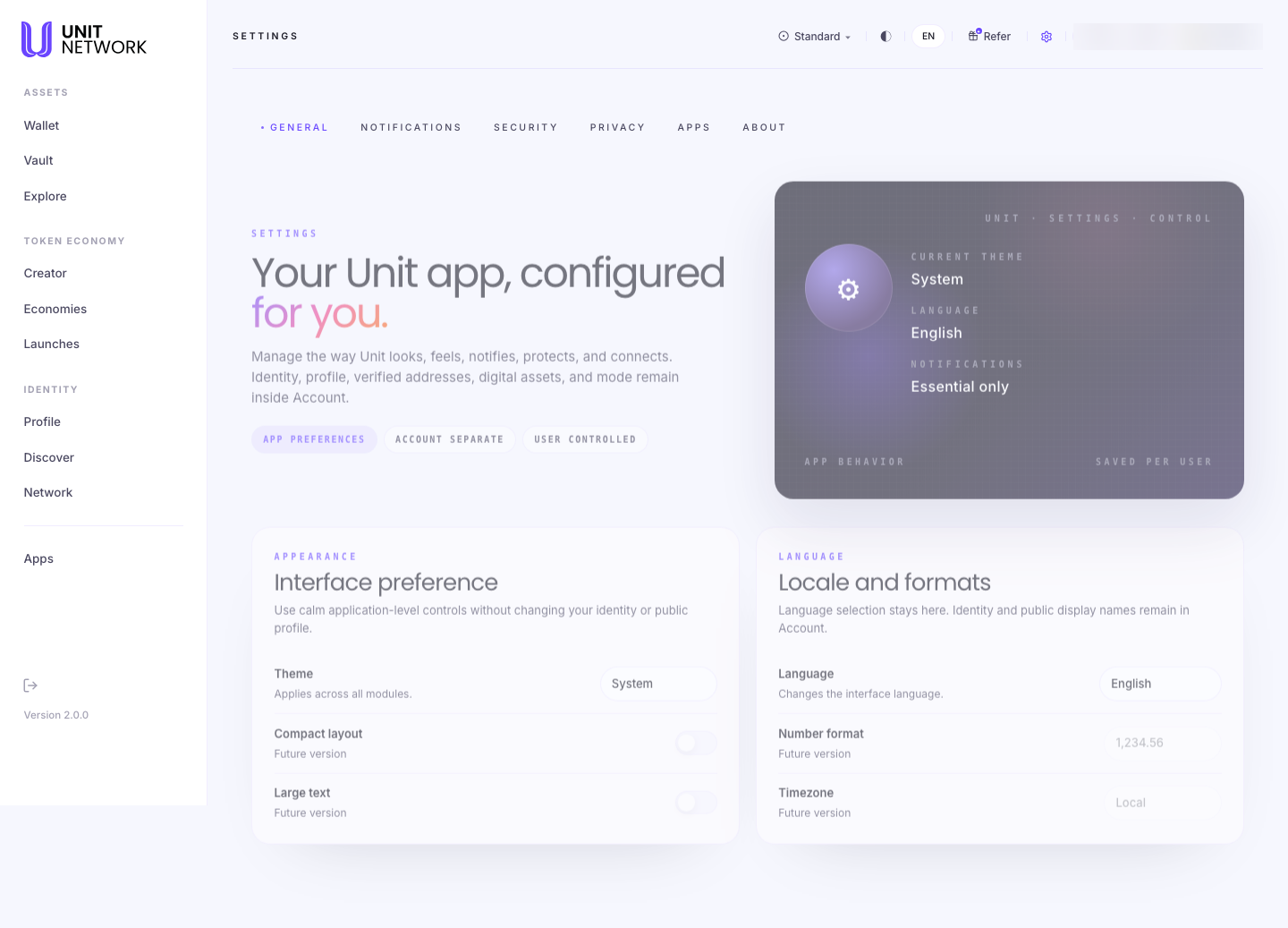
What others can see
| Visible when enabled | Never exposed |
|---|---|
| Display name and Unit ID | Email or phone |
| Public profile link | Private wallet addresses |
| Creator and vault badges | Balances and hidden fields |
Note "visible when enabled". Even the left-hand list is not public by default — the summary row reads Discoverability: hidden by default. You appear in Discover only if you choose to.
Two controls here do work, and both leave Settings: OPEN DISCOVER and REVIEW ACCOUNT PROFILE. That is deliberate — the tab says it "links into Account and Discover rather than duplicating identity controls."
Data controls
Export my data, Activity retention and Delete account are all marked Future version.
The other four tabs
Each is laid out and labelled, and each is marked Future version throughout. What follows is what they are for, so you know where to come back to.
- Notifications — "Only the alerts that matter."
- Two groups. Activity alerts covers deposits and withdrawals, send and receive events, and a weekly summary. Network alerts covers connection requests, launch participation and economy updates. The tab notes that "security and transaction status updates remain prioritized" regardless.
- Security — "Protect access without mixing it with identity."
- Sign-in controls for PIN, passkeys and recovery, and session behavior for auto lock, trusted devices and a sensitive-action check. Until these are live, what governs getting into your account is covered in Authentication.
- Apps — "Connect external tools with control."
- Where external integrations will be connected and their permissions managed — messaging (Telegram, WhatsApp) and developer access (developer mode, API access). The tab currently reads No connected apps. Not to be confused with the Apps launcher, which is a different thing entirely.
- About — "Unit Network application status."
- Version, build and mode, plus links that will lead to the help centre, status page and release notes, and to the terms, privacy policy and licences.
Before You Begin
- Be signed in. Settings are saved per user, so they follow your account rather than the browser.
- Nothing else. Nothing on this screen costs anything or touches your balances.
- Know what you are looking for. If it is your identity, profile or addresses, it is in Profile.
How to Use This Screen
Change the theme
- Open Settings — from the Apps tile or the Profile SETTINGS tab.
- Stay on General.
- Under Appearance, choose System, Light or Dark.
- The change applies immediately, across every module. There is nothing to save.
- Choose System if you would rather it follow your device automatically.
Change the language
- Open Settings and stay on General.
- Go to Locale and formats.
- Choose your language from the nineteen listed. Each appears in its own script, so look for the one you read rather than its English name.
- The interface changes. Your display name and public profile are unaffected.
Check what other people can see about you
- Open Settings and select the Privacy tab.
- Read the two lists under What others can see.
- Select REVIEW ACCOUNT PROFILE to see and change what you publish.
- Select OPEN DISCOVER to see the directory itself.
What Happens Next
Theme and language take effect immediately and are saved against your account, so they follow you to another browser or device when you sign in.
Nothing on this screen affects what other people see. Changing your language does not change your display name; changing your theme changes nothing but your own view.
Tips
- Theme is one setting for the whole application. There is no per-module appearance.
- Look in Profile first for anything about you. Settings is deliberately about the app, not about your identity — the screen says so on nearly every tab.
- The nineteen languages are listed in their own scripts. Scan for yours rather than its English name.
- Settings → Apps is not the Apps launcher. One is for external integrations, the other is the grid of UNIT features.
- The Privacy tab is worth reading even with its controls inactive — the two lists tell you exactly what is and is not exposed.
Related Screens
- Your Identity — username, profile and addresses
- Your Public Profile — what you actually publish
- Discover — the directory the Privacy tab links to
- Authentication — how access to your account works
- Apps — the launcher carrying the Settings tile
Frequently Asked Questions
- What does "Future version" mean?
- The control is shown but not yet active. It tells you what the tab will hold. Theme and language are the two that work today.
- Where do I change my username or profile?
- Not here. Profile → Identity. Settings says so on nearly every tab.
- Do my settings follow me to another device?
- They are saved per user — the General tab shows App behavior: saved per user — so they follow the account rather than the browser.
- Does changing my language change how my name appears?
- No. "Identity and public display names remain in Account."
- Is the Apps tab the same as the Apps launcher?
- No. The launcher opens UNIT's own features. The Apps tab here is for connecting external tools, and currently reads No connected apps.
- How do I delete my account?
- The control exists on the Privacy tab but is marked Future version.
- Am I discoverable by default?
- No. The Privacy tab shows Discoverability: hidden by default. Appearing in Discover is something you turn on.
Troubleshooting
- A control will not respond
- Check for the Future version marker beside it. Everything so marked is inactive by design.
- I cannot find a setting I expected
- If it concerns who you are rather than how the app behaves, it is in Profile.
- The theme did not change
- If it is set to System, it follows your device. Choose Light or Dark explicitly to override.
- My language reverted
- Settings save per user, so check you are signed in to the right account.
- I selected SETTINGS on Profile and left Profile
- Expected. That tab opens Settings as its own screen rather than switching within Profile.