Create Your Account
Overview
This is where your account is created. The heading is "Set up your identity." and the line beneath it is the one to take seriously: "Choose how you'll sign in from now on. Your recovery option depends on this choice."
Three methods are offered — Credentials, Passkey and Wallet — and the screen tells you plainly that the one you pick decides how you get back in if something goes wrong.
UNIT does not store your password. The sign-in screen says so outright — "Unit doesn't keep your password. Each sign-in derives your account fresh." — and the registration screen repeats it: "Unit doesn't see or store your password. It's used here to set up your account, then discarded."
Your details are the ingredients your account is derived from, not a lock that is checked against a stored copy. That is why the PIN field carries the note "Your PIN is a derivation input. Unit doesn't retain it.", and why there is nobody to ask for a reset.
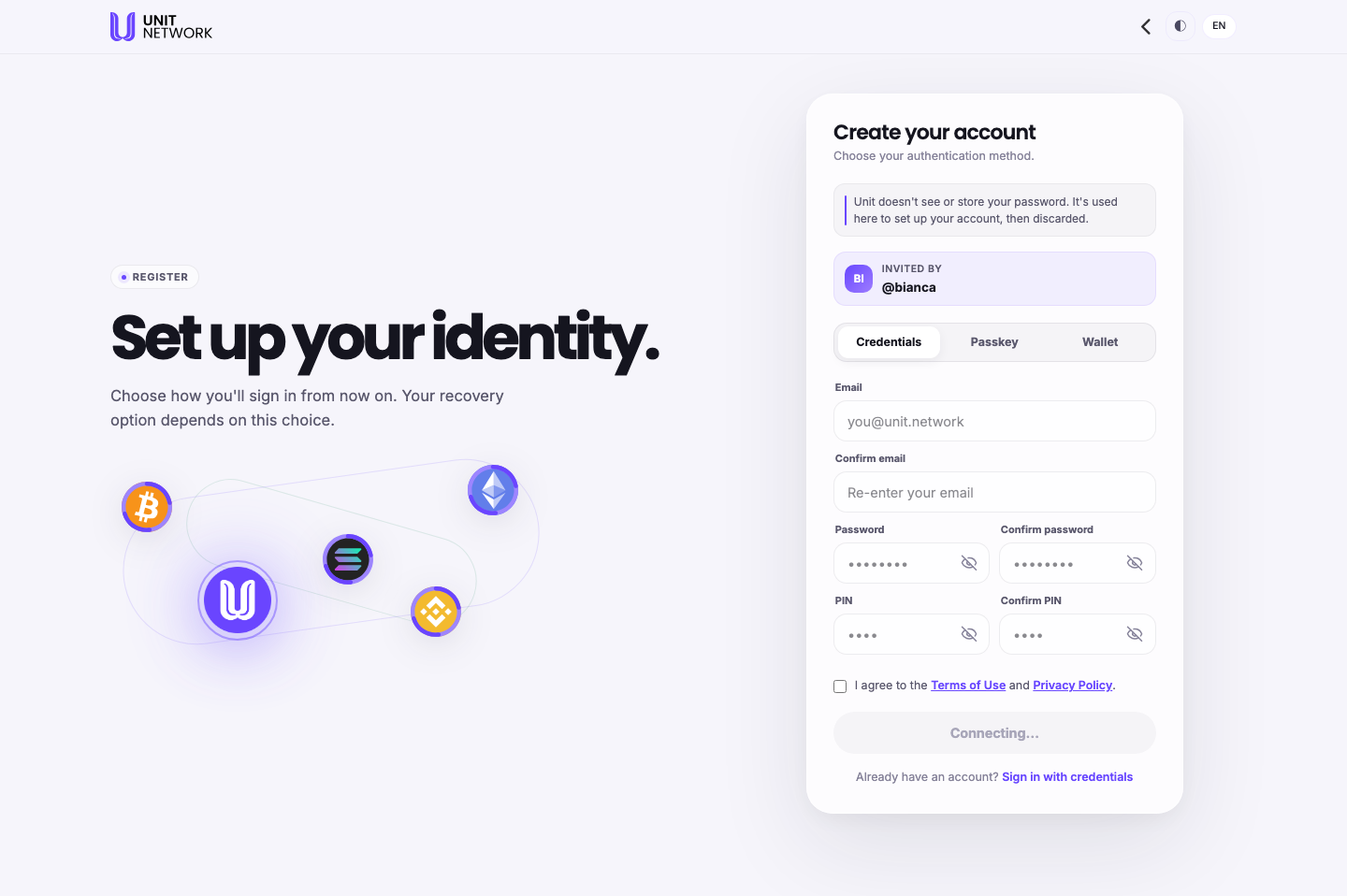
What You Can See
INVITED BY
A badge carrying your inviter's handle, brought through from the invitation. It is how you can tell the invitation was applied.
The three methods
- Credentials
- Email, password and PIN — each entered twice: Email and Confirm email, Password and Confirm password, PIN and Confirm PIN. The confirmations exist because none of these is stored anywhere for you to check later.
- Passkey
- A Username field and nothing else to type. The help line reads "Touch ID, Face ID, or a security key." — your device holds the credential.
- Wallet
- A Username field and a choice of wallet: MetaMask or Talisman. The help line reads "Enter a username to connect your wallet."
Note what differs. Passkey and Wallet ask you to choose a username during registration; the Credentials form asks for an email instead.
Terms
A single checkbox — "I agree to the Terms of Use and Privacy Policy." — with both documents linked. Read them from here rather than after the fact.
Before You Begin
- An invitation. Registration begins at an invitation, not here.
- A decision about method, because it sets how you recover access. Consider it before you start rather than at the last field.
- For Credentials: an email address, and a password and PIN you can reproduce exactly. Nobody can look them up for you.
- For Passkey: a device with Touch ID, Face ID or a security key.
- For Wallet: MetaMask or Talisman installed.
- Somewhere safe to keep your recovery details — set up before you begin, not after.
How to Use This Screen
Register with credentials
- Arrive from your invitation and confirm the INVITED BY badge shows the right handle.
- Leave Credentials selected.
- Enter your Email, then repeat it in Confirm email.
- Enter a Password and repeat it. It is never stored — if you cannot reproduce it, you cannot sign in.
- Enter a PIN and repeat it. Same rule: it is a derivation input, not something held on your behalf.
- Read the Terms of Use and Privacy Policy, then tick the agreement.
- Submit, and follow the steps the application gives you from there.
Register with a passkey
- Select Passkey.
- Choose a Username. It becomes your public handle.
- Tick the terms agreement.
- Select Continue with Passkey.
- Confirm on your device — Touch ID, Face ID or your security key.
Register with a wallet
- Select Wallet.
- Choose a Username.
- Choose MetaMask or Talisman.
- Tick the terms agreement.
- Select Continue with Wallet and approve the connection in your wallet extension.
What Happens Next
Your account is created and your inviter is recorded against it. From then on you sign in with whichever method you chose here.
The screen warns that "your recovery option depends on this choice". Whatever recovery details you are given during setup, keep them somewhere safe at the time — see Restore Your Account for what recovery actually requires.
Tips
- Decide the method before you start. It is the one choice on this screen you cannot casually revisit, because it sets how you get back in.
- Do not rely on remembering the PIN. It is not stored, so there is no reset. Write it down somewhere safe before you type it here.
- The double-entry fields are your only check. There is no "show me what I set" afterwards.
- Choose your username carefully on the Passkey and Wallet paths — it becomes your public handle.
- Read the terms from the links on this screen rather than agreeing and looking later.
Related Screens
- Invitation — where registration starts
- Sign In — using the method you chose here
- Restore Your Account — what recovery requires
- Your Identity — your username and profile afterwards
Frequently Asked Questions
- Which method should I choose?
- The screen does not recommend one, and neither does this guide — it depends on what you already have. What matters is that the choice sets your recovery option, so make it deliberately.
- Why is the PIN asked for twice?
- Because it is never stored. The confirmation field is the only check that you typed what you meant to.
- Can I change my sign-in method later?
- Nothing on this screen offers to. Treat the choice as durable.
- Where does my username come from with Credentials?
- The Credentials form asks for an email rather than a username. Only the Passkey and Wallet paths ask you to choose one here.
- Which wallets are supported?
- MetaMask and Talisman are the two offered on this screen.
- What if I registered without reading the terms?
- Both documents stay linked from this screen and are worth reading whenever you get to them.
Troubleshooting
- The submit control will not proceed
- Check every field is filled, that both halves of each pair match, and that the terms checkbox is ticked.
- The confirm field says it does not match
- Retype both halves rather than correcting one. It is a better use of thirty seconds than a locked account.
- My wallet does not appear
- MetaMask or Talisman needs to be installed and unlocked in the browser you are registering from.
- The INVITED BY badge shows the wrong handle
- Go back to the invitation and start from the correct inviter's link or username.