Sales
Overview
Sales is where you offer part of your token's supply to participants. Each offer is a sale stage with its own price and quantity, and the tab tracks what each has raised.
Stages are how an economy raises capital. They also feed the Sales line in your supply distribution.
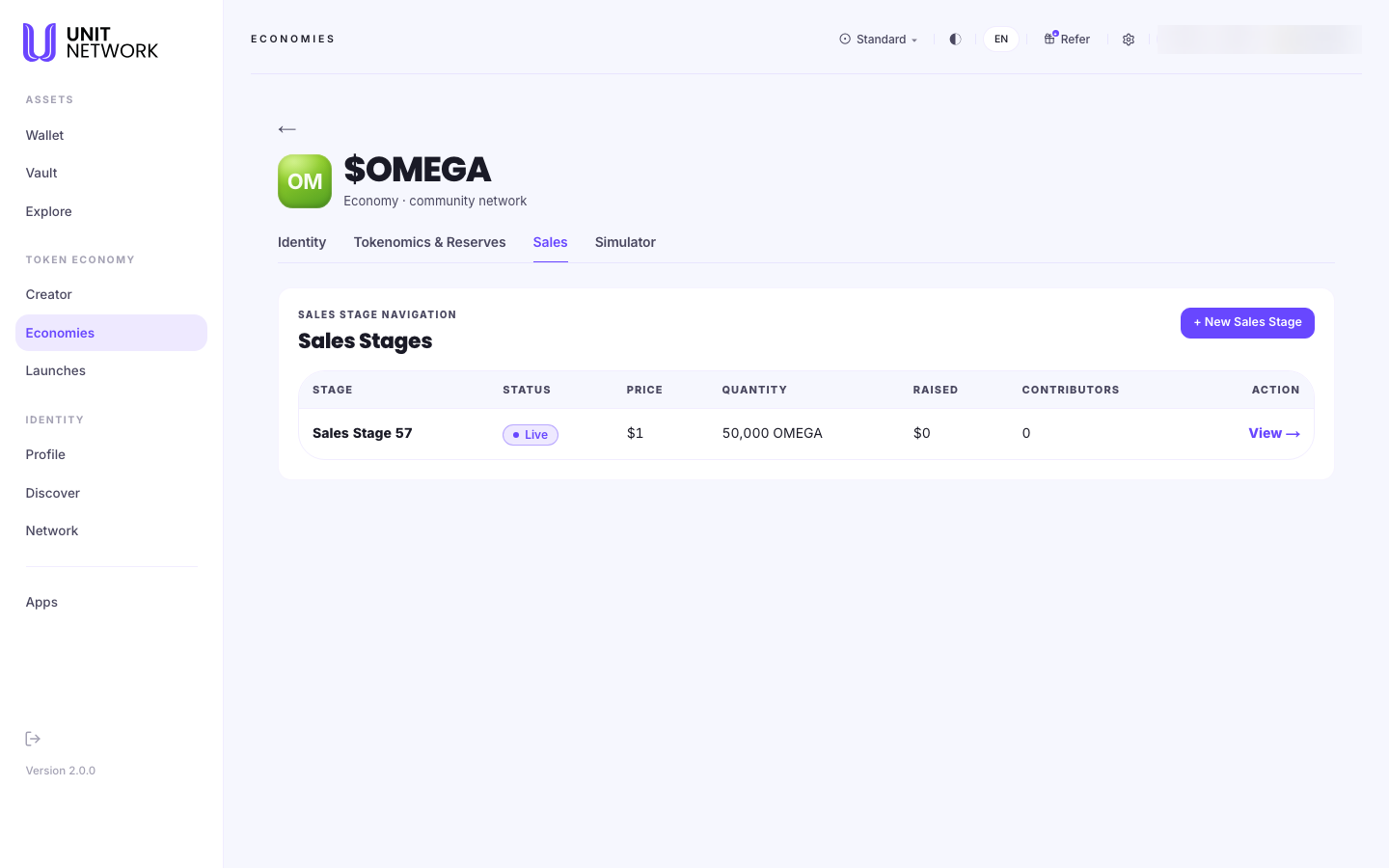
Open the economy from your Economy Portfolio and select the tab. Every workspace tab is reached that way — the workspace needs to know which token it is working on, and opening it from the portfolio is what tells it.
What You Can See
- New Sales Stage
- Creates a stage — an offer of a set quantity at a set price.
- Stage
- The stage's identifier. An economy can run several over time.
- Status
- Whether the stage is Live and accepting contributions.
- Price
- What one token costs in this stage. Different stages can price differently — that is the point of having stages.
- Quantity
- How much of your token is offered in this stage. This is what appears as Sales in your supply distribution.
- Raised and Contributors
- How much has come in, and how many people have taken part. Both read zero until the stage attracts participants.
- View
- Opens the stage.
Before You Begin
- A price for your token in this stage.
- A quantity to offer — it comes out of your supply, so check Tokenomics & Reserves first.
- A view on what you are raising for, since the proceeds fund the economy.
How to Use This Screen
Create a sale stage
- Open the economy from your portfolio and select Sales.
- Select + New Sales Stage.
- Set the price per token.
- Set the quantity to offer.
- Confirm. The stage appears in the table with its status.
- Check Tokenomics & Reserves — the Sales share of your distribution now reflects it.
Track a stage
- Read Status to confirm it is live.
- Read Raised and Contributors for how it is going.
- Select View for the stage itself.
What Happens Next
A live stage accepts contributions. What it raises funds the economy, and the quantity offered is reflected in your supply distribution.
Bringing a stage to participants is the work of Launches.
Tips
- Check your supply before setting a quantity. What you offer has to come from somewhere.
- Several smaller stages give you more control than one large one — you can price later stages differently.
- Zero raised and zero contributors on a new stage is expected. Participants arrive through Launches.
Related Screens
- Tokenomics & Reserves — where the sales allocation shows up
- Simulator — model a raise before committing
- Launches — bringing a stage to participants
Frequently Asked Questions
- Can I run more than one stage?
- Yes. Stages are numbered and an economy can run several over time.
- Where does the quantity come from?
- Your token's supply. It appears as the Sales share of your supply distribution.
- Why are Raised and Contributors zero?
- Nobody has taken part yet. A stage being live means it is open, not that it has activity.
- Can I change the price after creating a stage?
- Create a further stage at a different price — that is what stages are for.
Troubleshooting
- My stage is not accepting contributions
- Check the Status column reads Live.
- The Sales figure in my distribution has not changed
- The distribution is derived from your stages. Re-read it after the stage is created.
- I cannot offer the quantity I want
- Check what is available in Tokenomics & Reserves — supply held in the treasury or already allocated is not available to sell.