Your Network
Overview
Your Network is the people side of your account: who you have invited, who follows you, who you follow, and who is mutual. It is also where you get the link that brings new people in.
Inviting matters beyond the count. The screen notes that you earn 25% of exchange fees from your network — so the people you bring in are a standing interest, not a vanity number.
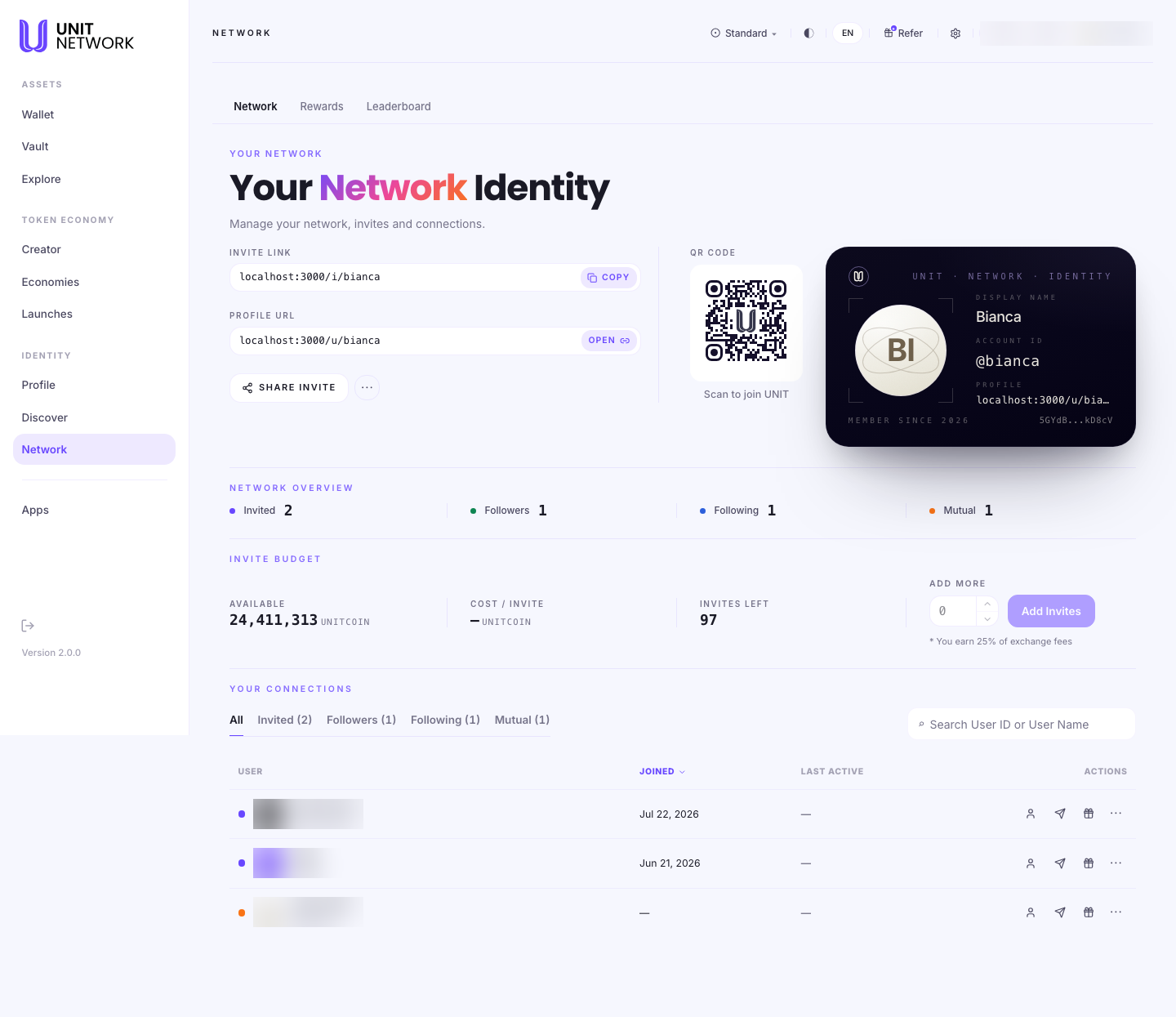
What You Can See
- Invite Link and QR code
- Your personal link for bringing people to UNIT, with a code to scan. Copy takes the link; Share Invite sends it through your device.
- Profile URL
- Your public page — the same address as on your public profile. Open views it.
- Identity card
- Display name, account ID, profile address, member since and account address, all in one card.
- Network Overview
- Invited — people who joined through you. Followers and Following — the two directions of attention. Mutual — where both are true.
- Invite Budget
- Your available balance, the cost per invite, and how many invites left you have. Add Invites tops that up.
- Your Connections
- A table of everyone in your network, filterable by relationship, showing when they joined and when they were last active. Each row carries actions — view their profile, send to them, or gift.
Before You Begin
- Invites left — check the budget before inviting; each one draws on it.
- Somewhere to share your link — a message, an email, or a code to scan in person.
- A filled-in public profile, since anyone following your link will look you up.
How to Use This Screen
Invite someone
- Select Network from the menu.
- Check Invites Left in the Invite Budget row.
- Select Copy beside the invite link, or Share Invite to send it through an app.
- In person, let them scan the QR code instead.
- When they join, your Invited count goes up and they appear in Your Connections.
Review your connections
- Scroll to Your Connections.
- Use the filters — Invited, Followers, Following, Mutual — to narrow to a relationship.
- Read Joined and Last Active to see who is still around.
- Use the row actions to open a profile, send to someone, or send a gift.
- Search by user ID or name once the list is long.
Top up your invites
- Find Add More in the Invite Budget row.
- Enter how many invites to add.
- Select Add Invites and confirm. The cost per invite is shown beside it.
What Happens Next
Someone joining through your link is recorded as Invited and appears in your connections. Connections made through Discover arrive here too, once accepted.
Activity across your network feeds Rewards and Leaderboard.
Tips
- The invite link is not the same as your profile URL. One brings people to UNIT; the other shows them who you are.
- Check Invites Left before a push — running out mid-conversation is avoidable.
- Last Active is the honest measure of a network. A long list of dormant connections is worth less than a short active one.
- The 25% share of exchange fees is why inviting people is worth doing deliberately.
Related Screens
- Rewards — what your network has actually earned
- Leaderboard — how your network ranks by participation
- Discover — finding people to connect with
- Your Public Profile — what an invitee sees
Frequently Asked Questions
- What is the difference between Invited and Followers?
- Invited means they joined UNIT through your link. Followers means they chose to follow you afterwards. The two are independent.
- What does Mutual mean?
- You follow each other.
- Do invites cost anything?
- The Invite Budget row shows the cost per invite and how many you have left.
- What is the 25% of exchange fees?
- A share of exchange fees generated by your network, noted beside the invite budget. What has actually been recorded appears on Rewards.
- Can I remove a connection?
- Each row carries an actions control at its end.
Troubleshooting
- Someone used my link but is not listed
- Check the Invited filter rather than All, and confirm they completed joining.
- I have run out of invites
- Use Add More in the Invite Budget row to top up.
- Last Active shows a dash
- There is no recorded activity for that person yet.
- My invite link does not work for someone
- Check it was pasted in full — messaging apps sometimes truncate. The QR code avoids the problem entirely.