Open or Add to a Vault
Overview
Each vault has a single page, reached from My Vaults. It carries three tabs — Add, Withdraw and Settle — and a header showing the vault's status, its collateral and its Vault Asset Amount.
Opening a vault and adding collateral are the same tab. Add adapts to the vault: if it has not been opened yet it asks you to register a settlement address first; once it is open, it becomes the place you add UNITCOIN.
What You Can See
The header is the same on every tab:
- Status
- Active or Inactive.
- Collateral
- The UNITCOIN committed to this vault.
- Vault Asset Amount
- What the vault currently holds and must settle.
- ← My Vaults
- Back to the vault table.
Before You Begin
- A verified settlement address for the asset, added in Digital Assets. The vault reads that list — an address cannot be typed in here.
- Available UNITCOIN for the collateral you intend to commit.
- A signing account connected, since each action is signed.
How to Use This Screen
Step 1 — Open a vault by registering its settlement address
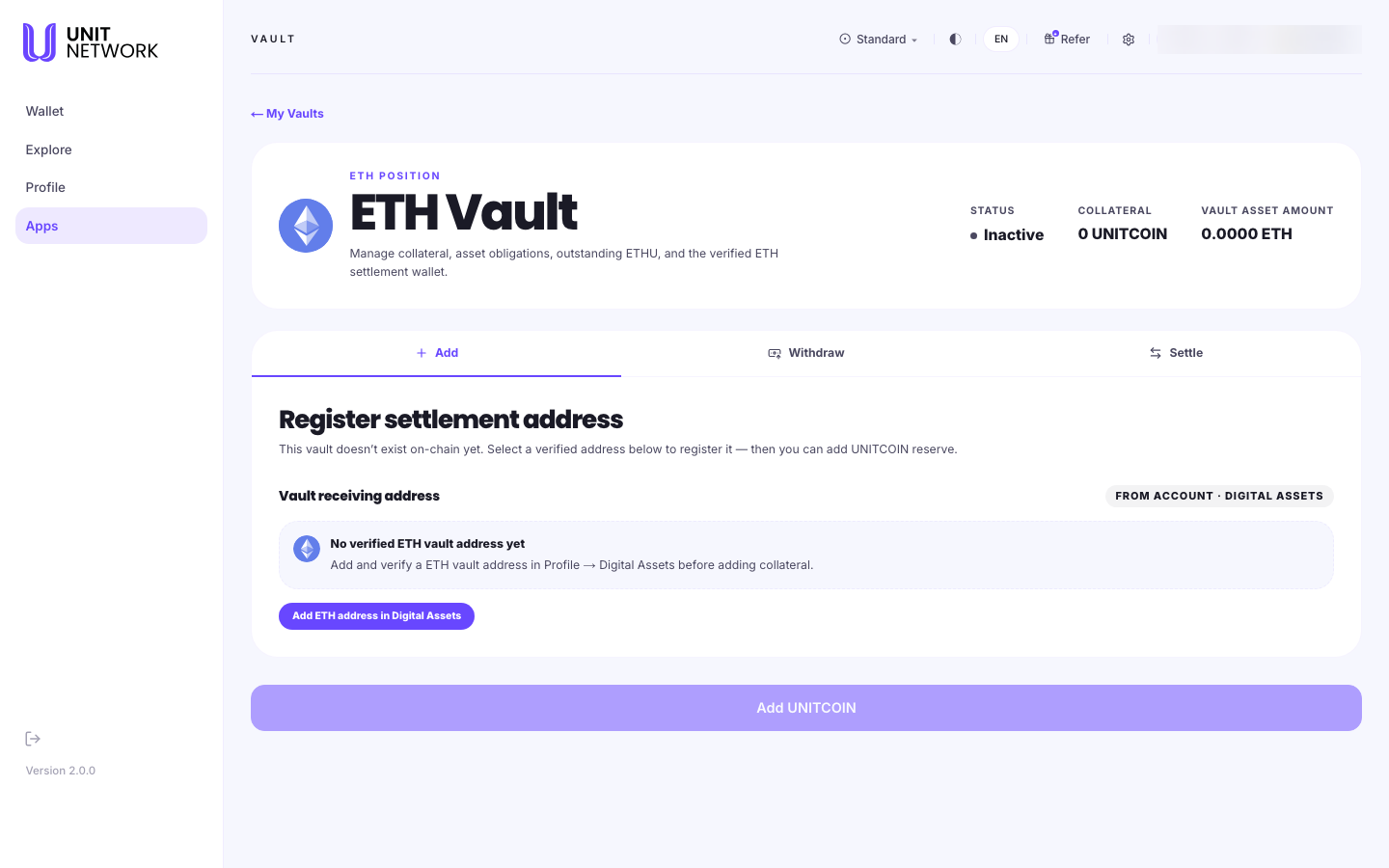
- Open My Vaults and select Open Vault on the asset you want.
- The vault page opens on the Add tab, headed Register settlement address. It tells you the vault does not exist on-chain yet.
- Look at Vault receiving address. If you have a verified address for that asset it is offered here for selection.
- If you do not, the panel says so and offers Add … address in Digital Assets. Follow it, add and verify the address, then come back. Add UNITCOIN stays unavailable until an address is registered.
- Select the verified address to register it, and sign.
- The vault's status becomes Active.
Step 2 — Add collateral
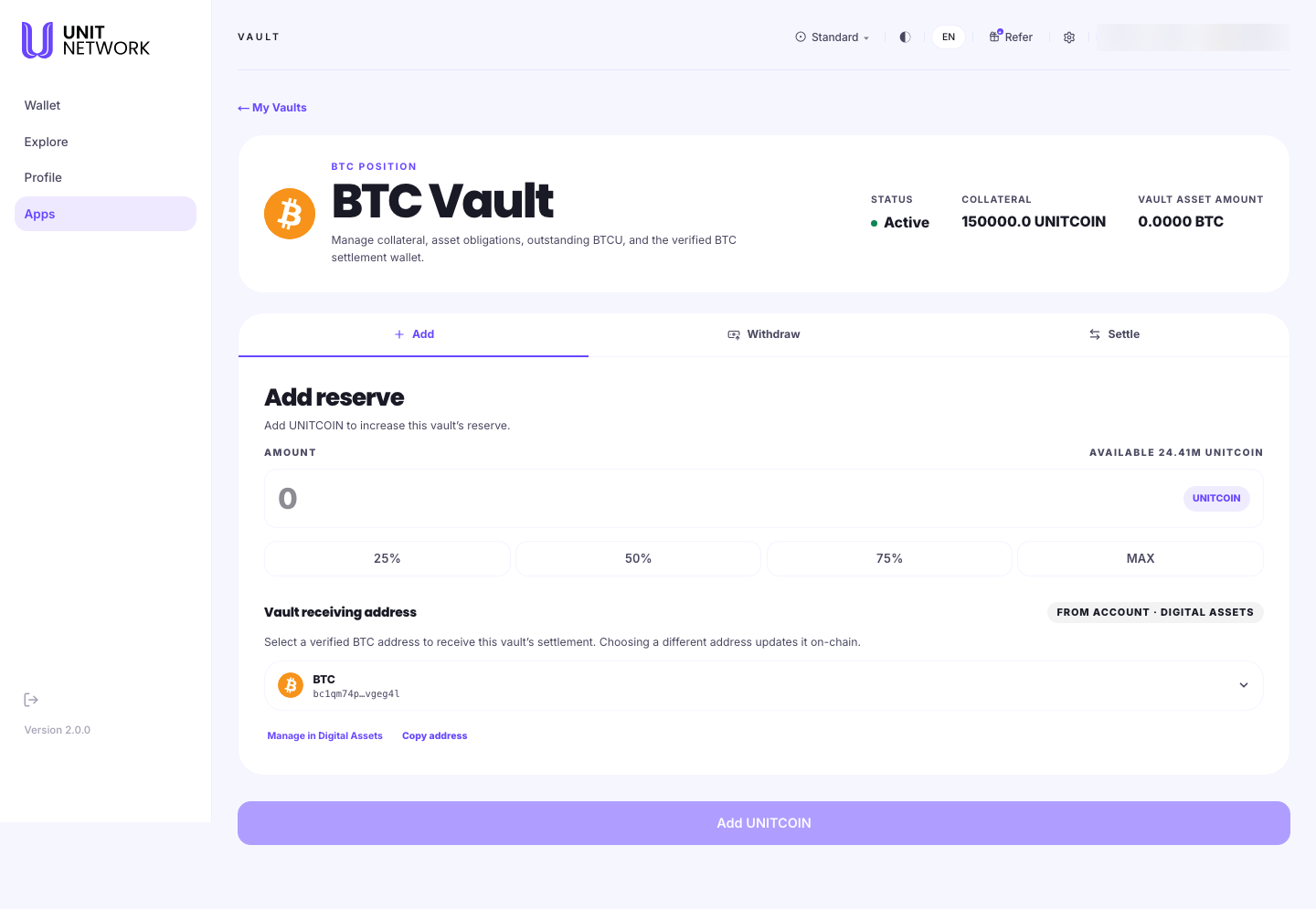
- From My Vaults, select Manage on the vault.
- On the Add tab, find Add reserve.
- Enter an Amount, or use 25%, 50%, 75% or MAX. The Available figure beside the field is the UNITCOIN you have to work with.
- Check the Vault receiving address shown beneath. This is where the vault settles. Selecting a different verified address updates it on-chain.
- Select Add UNITCOIN and sign. The button stays unavailable until an amount is entered.
- The header's Collateral figure increases, as does Your Collateral on My Vaults.
Step 3 — Settle what the vault holds
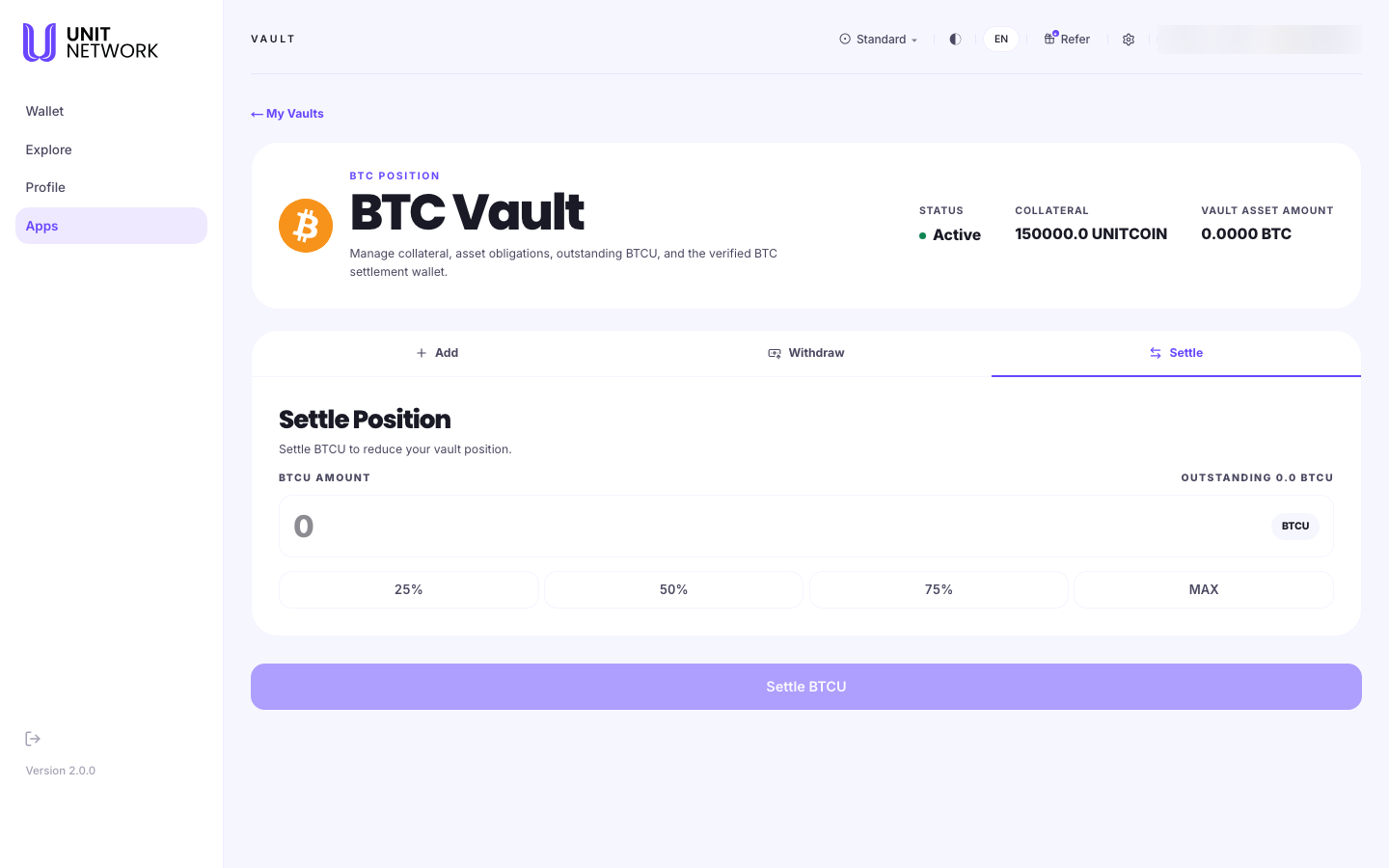
- Select the Settle tab.
- Read Outstanding — the wrapped asset the vault still has to settle.
- Enter an amount or use a percentage.
- Select Settle and sign.
- The Vault Asset Amount in the header falls. Once it reaches zero, the collateral is free.
Step 4 — Withdraw your collateral
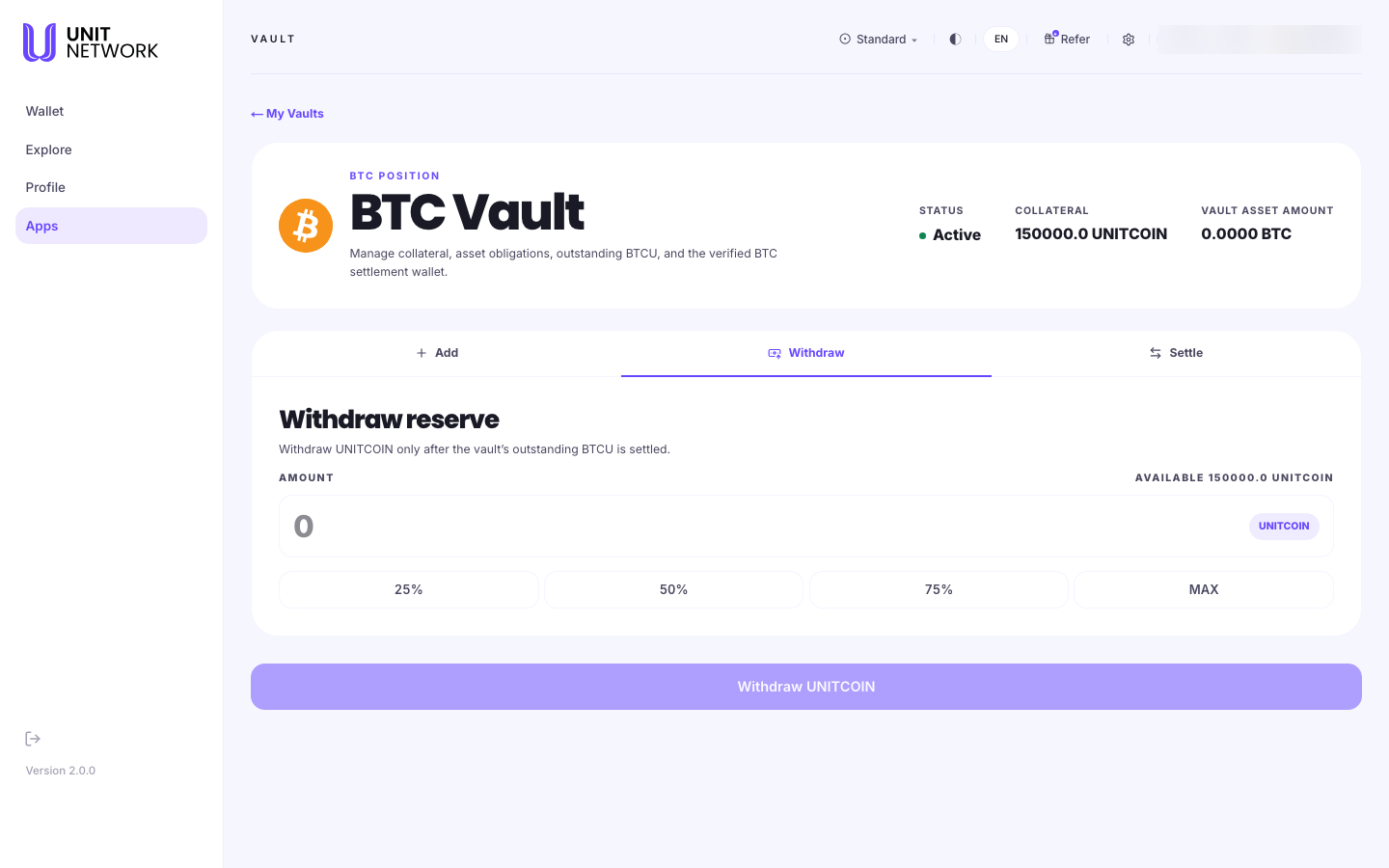
- Check the header's Vault Asset Amount reads zero. The tab states the condition plainly: withdraw UNITCOIN only after the vault's outstanding asset is settled.
- Select the Withdraw tab.
- Enter an amount or use a percentage. Available here is the collateral in this vault.
- Select Withdraw UNITCOIN and sign.
- The UNITCOIN returns to your wallet and the vault's collateral falls.
What Happens Next
Each action updates the header immediately — status, collateral and Vault Asset Amount are always in view, so you can see the effect of what you just did without leaving the page.
Taking back all of a vault's collateral ends the vault: the registration deposit is refunded and the settlement address is released. The vault's history is kept, and opening one for the same asset later starts a fresh vault rather than reviving the old.
Tips
- Verify the settlement address before you start. It is the one prerequisite that cannot be sorted out mid-flow, and the Add tab blocks until it exists.
- An address is either a vault settlement address or a withdrawal destination — not both. Keep one for each purpose.
- Settle before you plan to withdraw. The order is always settle, then withdraw.
- Commit what you can leave in place: while anything is outstanding, the collateral stays put.
- Use Copy address on the Add tab when you need to give the settlement address to something else.
Related Screens
- My Vaults — where every vault page is reached from
- Digital Assets — where settlement addresses are verified
- Wallet Overview — where the UNITCOIN comes from and returns to
- Process Withdrawals — requests against vaults
Frequently Asked Questions
- Is opening a vault separate from adding collateral?
- No. Both happen on the Add tab. On an unopened vault it asks for a settlement address; once registered, the same tab adds UNITCOIN.
- Why is "Add UNITCOIN" greyed out?
- Either the vault has no registered settlement address yet, or you have not entered an amount.
- Why can I not withdraw my collateral?
- Because the vault still has an outstanding asset amount. Settle it to zero first — the Withdraw tab states this condition on the screen.
- What is the difference between Withdraw and Settle?
- Withdraw takes back your UNITCOIN collateral. Settle reduces the wrapped asset the vault owes. They move different things in different directions.
- Can I change the settlement address later?
- Yes. The Add tab lets you select a different verified address, and says that doing so updates it on-chain.
- What happens if I withdraw all the collateral?
- The vault ends, the registration deposit is refunded and the address is released. The history is kept.
Troubleshooting
- No verified address is offered
- The panel says so directly and offers to take you to Digital Assets. Add and verify an address for that asset's network, then return.
- The vault says it does not exist on-chain yet
- That is the normal state of an unopened vault. Register a settlement address to open it.
- The Settle tab shows nothing outstanding
- Then there is nothing to settle, and the collateral is already free to withdraw.
- My collateral figure has not changed
- Confirm the signature was approved. The header and My Vaults update together once the action settles.