Process Withdrawals
Overview
Process Withdrawals is the queue of withdrawal requests made against vaults. It shows who requested what, how long each has been waiting, and lets you take one on.
This is the operator's side of the Vault module. Someone withdrawing an asset creates a request; a vault operator settles it externally from their own settlement wallet. If you only hold assets, you will use Withdraw in the Wallet and never need this page.
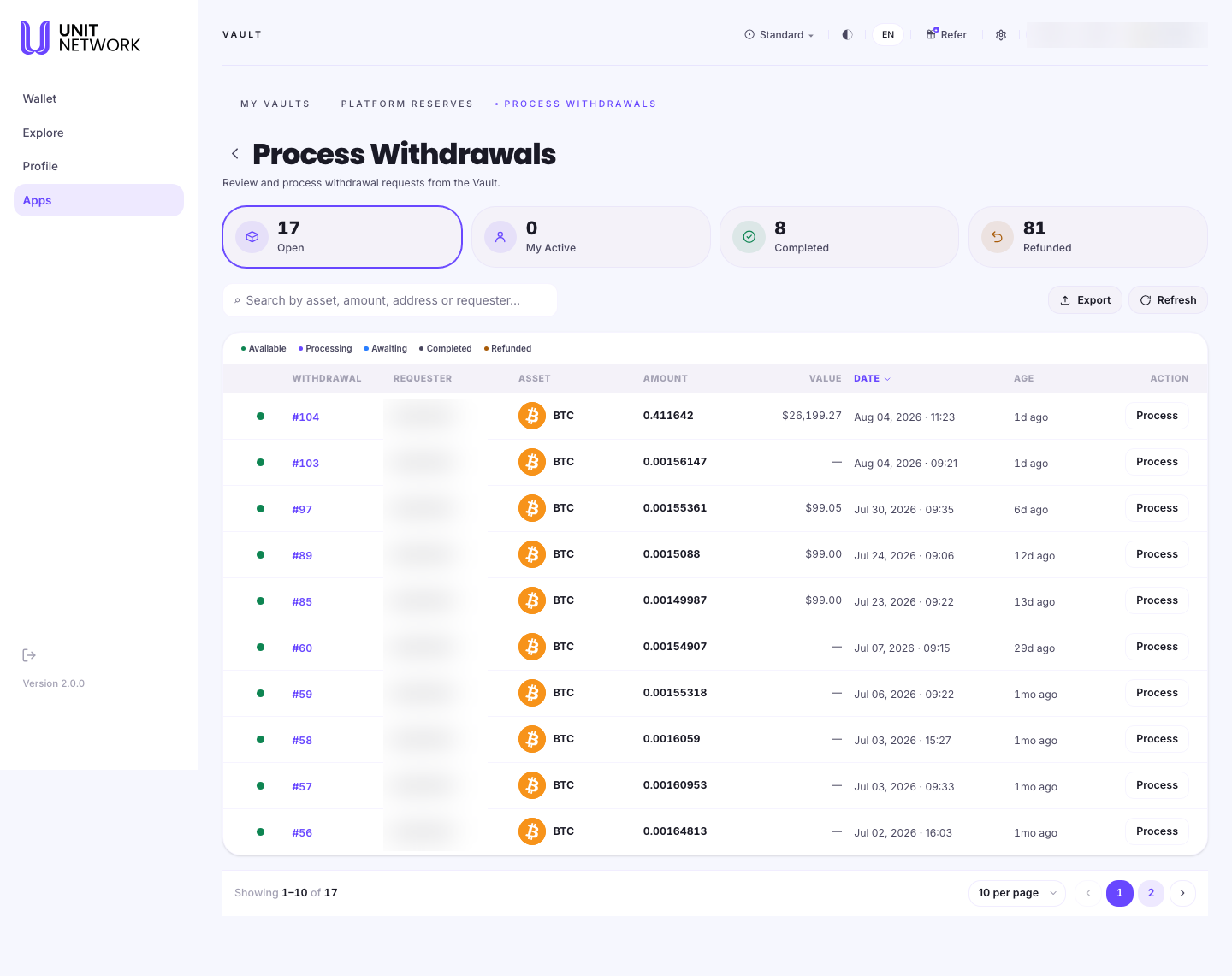
What You Can See
- Open · My Active · Completed · Refunded
- Counts across the whole queue: how many are waiting, how many you are handling, how many have been settled, and how many were refunded to the requester.
- Available · Processing · Awaiting · Completed · Refunded
- Filters. Available is the default — requests nobody has taken on yet.
- Status and Withdrawal
- Where each request stands, and its reference number.
- Requester
- The handle of the person who asked for the withdrawal.
- Asset, Amount and Value
- What is being withdrawn, how much, and its approximate value. A dash means no current price.
- Date and Age
- When the request was made, and how long it has been waiting — the queue is not always fast-moving, and Age makes that visible.
- Process
- Takes on that request.
- Export and Refresh
- Take the queue away as a file, or fetch the latest state.
Before You Begin
- An active vault for the asset, with collateral committed — processing a withdrawal means settling it from the vault you operate.
- Access to your settlement wallet, since the external payment is made from it.
- The balance to cover the request in that wallet.
How to Use This Screen
Review the queue
- Select Process Withdrawals from the Vault tabs.
- Read the counts along the top for the shape of the queue.
- Leave the filter on Available to see requests nobody has taken on.
- Scan Age to find the ones waiting longest.
- Check Asset and Amount against the vault you operate — you can only settle assets you hold a vault for.
Take on a request
- Find a request for an asset you operate a vault for.
- Check the Amount against what you can settle.
- Select Process on that row.
- Follow the steps shown to make the external payment and record it.
- Use the Processing and My Active views to track what you have taken on.
Check on something you have handled
- Select the Completed filter for requests that settled.
- Select Refunded for requests that were returned to the requester.
- Use the search field to find one by reference or requester.
What Happens Next
Taking on a request moves it out of Available and into your My Active count. Once settled it appears under Completed. A request that cannot be settled is refunded to the requester and appears under Refunded.
Tips
- Sort your attention by Age. The oldest requests are the ones a requester is waiting on.
- Check the Value column before taking a large request on — the amounts vary considerably.
- Use Refresh rather than reloading; the queue changes as other operators take requests.
- Export is useful for reconciling what you have settled against your own records.
Related Screens
- My Vaults — the vaults you settle from
- Open or Add to a Vault — committing the collateral behind them
- Withdraw — the requester's side of the same journey
- Platform Reserves — the backing across all markets
Frequently Asked Questions
- Do I need to use this page?
- Only if you operate a vault and want to settle other people's withdrawals. Withdrawing your own assets is done in the Wallet.
- What does "Refunded" mean?
- The request was returned to the requester rather than settled. The value goes back to them.
- Why do some requests show a dash for Value?
- No current price is available for that asset. The Amount is still exact.
- Can I process a request for an asset I do not have a vault for?
- Settling means paying from the settlement wallet of a vault you operate, so you need a vault for that asset.
- What is "My Active"?
- Requests you have taken on and not yet completed.
Troubleshooting
- The queue looks empty
- Check which filter is selected. Available shows only requests nobody has taken on; the others may still have entries.
- A request I was working on has gone
- Another operator may have taken it, or it may have been refunded. Check Processing and Refunded.
- The counts do not match the rows
- The counts cover the whole queue; the table shows the current filter. Select a different filter to see the rest.
- The list is out of date
- Select Refresh. The queue changes as other operators work.