Fund the Reward Pool
Overview
Top Up on the reward pool card opens this workspace. It is where an owner actually moves tokens into the pool, and where every previous funding is listed.
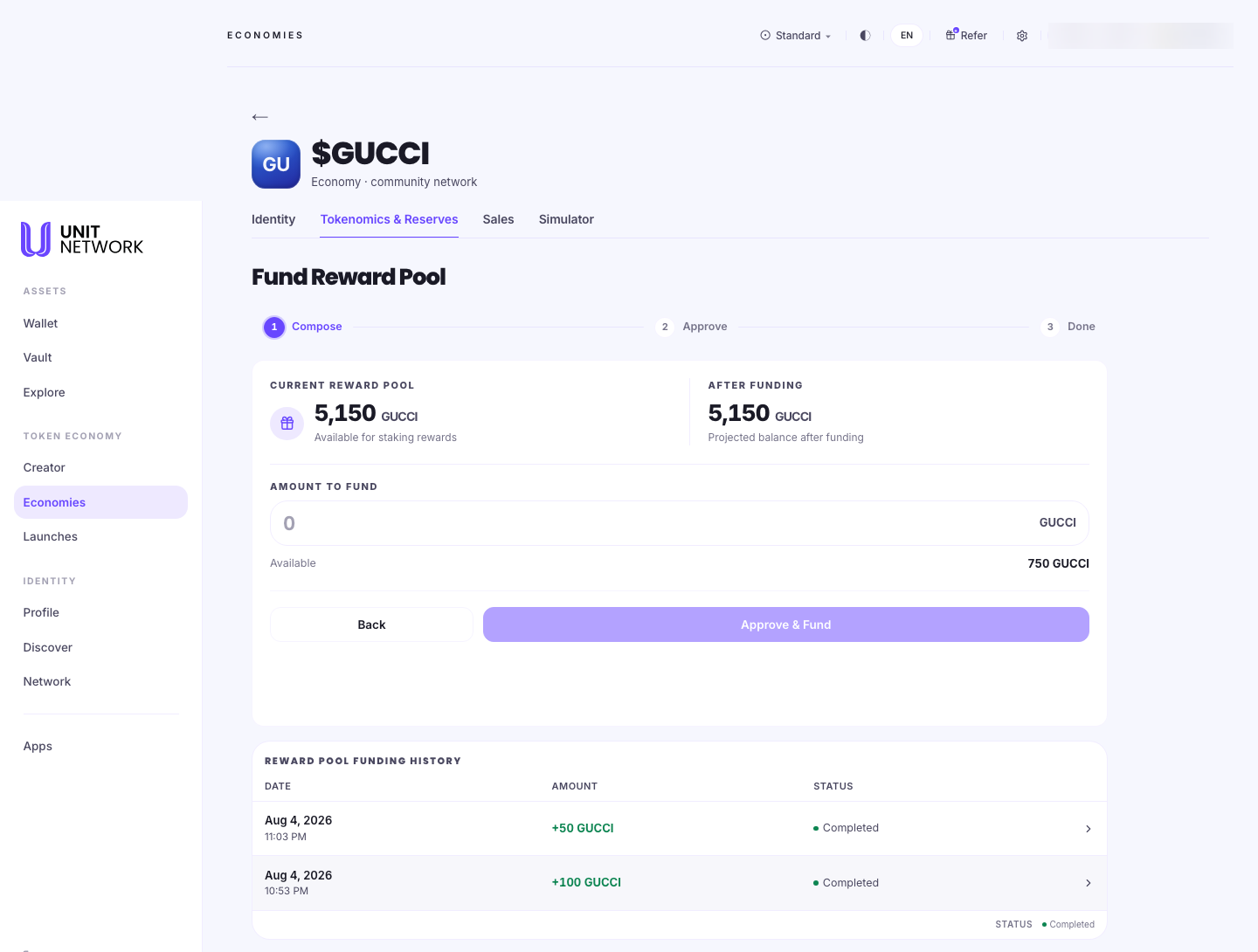
It runs in three stages — 1 Compose, 2 Approve, 3 Done — and opens in place on the Tokenomics & Reserves tab rather than at an address of its own.
What You Can See
The three stages
- 1 · Compose
- Choose the amount.
- 2 · Approve
- Confirm and sign.
- 3 · Done
- The funding is complete and appears in the history below.
Before and after, side by side
- Current Reward Pool
- What is in the pool now — "available for staking rewards".
- After Funding
- "Projected balance after funding." It updates as you type, so you can see the result before committing. With nothing entered, the two figures match.
Amount to fund
One field, with Available beneath it — how much you have to fund from. That figure is the ceiling on this transaction.
Reward pool funding history
Every previous funding, with Date, Amount and Status. Amounts are shown as additions — +50 GUCCI, +100 GUCCI — and each row expands for detail.
This is the part worth knowing about. The pool balance tells you the position now; the history tells you whether an owner has been topping it up steadily or funded it once and left it.
Before You Begin
- Your own economy. Funding is an owner action.
- Tokens available to commit. Check the Available figure — it caps what you can fund.
- Bond staking registered, or the pool has nothing to pay into. See The Reward Pool.
- A rate in mind. The APR you have set decides how fast this funding is consumed.
How to Use This Screen
Fund the pool
- Open your economy and select Tokenomics & Reserves.
- Select Top Up on the reward pool card.
- Read Current Reward Pool and Available.
- Enter an amount to fund.
- Check After Funding — that is the balance you are aiming at.
- Select Approve & Fund, then confirm and sign.
- On Done, confirm the new entry appears in the funding history.
Work out how much to add
- Note the current pool and the APR from the bond staking card.
- Look at the funding history to see what past top-ups have been and how long they lasted.
- Enter a candidate amount and read After Funding.
- Adjust until the projected balance covers the period you want to fund.
Review how a pool has been maintained
- Open the workspace and scroll to Reward pool funding history.
- Read the dates. Regular additions mean a pool being maintained.
- Compare the amounts with the current balance to see how quickly it is drawn down.
- Expand a row for the detail of any single funding.
What Happens Next
Approved and signed, the tokens move into the pool. The balance rises to what After Funding projected, and the funding appears in the history marked Completed.
The supply distribution updates to show the reward pool holding a larger share, and stakers keep accruing against it as before.
Tips
- Use After Funding as the check. It is a preview of the result, before you commit.
- Read the funding history before deciding an amount. Past top-ups tell you the real burn rate better than any calculation.
- Available is the ceiling, not your whole supply. Tokens elsewhere are not available to fund from.
- Fund before the pool runs low rather than after. Stakers accrue continuously.
- Every funding is recorded permanently, which is worth knowing both ways — it is a public record of whether you have kept your rewards funded.
Related Screens
- The Reward Pool — the card this opens from
- Claim Rewards — where the funding ends up
- Tokenomics & Reserves — the tab it opens on
- Earn — the staking the pool pays for
Frequently Asked Questions
- Why do Current and After Funding show the same number?
- Because no amount has been entered yet. After Funding is a projection and updates as you type.
- What does Available mean?
- How much you have to fund from. It caps the amount you can add in one go.
- Can I take tokens back out of the pool?
- Nothing on this screen offers it. The workspace funds the pool; stakers draw it down by claiming.
- Is the funding history public?
- It sits on the economy's tokenomics tab alongside the rest of the supply picture.
- Does funding create new tokens?
- No. It moves existing supply into the pool.
- How often should I top up?
- The history is the best guide — it shows what previous top-ups were and how long they lasted.
Troubleshooting
- Approve & Fund will not proceed
- Check an amount has been entered and that it is within Available.
- Available is lower than I expected
- It reflects what you can fund from, not total supply. The supply distribution shows where the rest sits.
- My funding is not in the history
- It appears once the transaction completes. Check the stage bar reached Done.
- I cannot find this screen
- It has no address of its own — it opens in place from Top Up on the reward pool card.